

Glossary
The glossary is a shop-wide vocabulary that the extension applies to each translation. It contains two kinds of entry: terms that the extension must never translate, and terms that must always have the same translation. You maintain the glossary once under Catalogues → AI Translation → Glossary, and it applies to each provider.
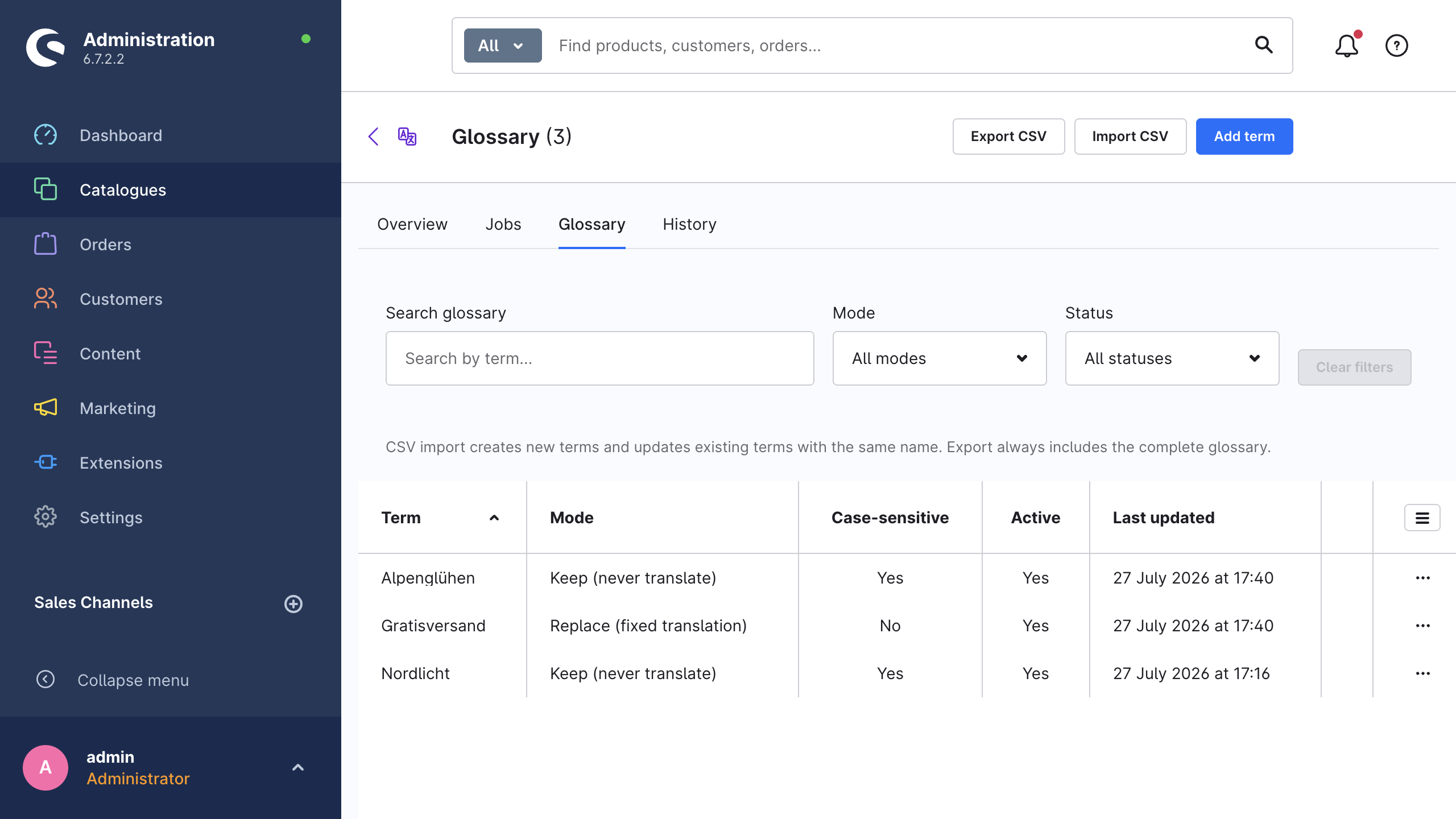
You can search the list by term. You can also filter it by Mode and by Status (Active / Inactive). Each row shows the term, its mode, the case-sensitivity of the matching, the active status, and the date of the last change.
Keep and replace
Each entry has a Mode, and two different mechanisms enforce the two modes.
| Mode | Label in the Administration | What it does |
|---|---|---|
| Keep | Keep (never translate) | The term stays exactly as it is in the source: brand names, product lines, model designations |
| Replace | Replace (fixed translation) | The extension translates the term to a value that you define for each target language |
Keep terms
Before the extension sends a text to the provider, it replaces each occurrence of a keep term with a protection token. The provider translates the text around that token, and the extension puts the original term back afterwards. The term never reaches the provider as translatable text, which is the reason why keep mode operates with machine translation and with language models. Language models also receive the term itself, with the instruction to never translate it.
If the provider deletes or damages a token, the extension cannot restore the term. It then records the field as failed and writes nothing, and the job error list gives the reason. The other fields of the same record stay unaffected.
Replace terms
The extension enforces replace terms in two ways at the same time:
- As an instruction. The extension sends the term and your value to the language-model providers, as an explicit instruction with the translation prompt. Those providers are OpenAI, Anthropic Claude, Google Gemini, Mistral and modernice All-in-One.
- As post-processing. After the provider answers, the extension replaces each remaining occurrence of the source term in the output with your value. The keep tokens are still in place at this moment, therefore the post-processing cannot rewrite text inside a protected keep term.
WARNING
The post-processing can replace the source term only while that term is still recognisable in the output. Machine-translation providers such as DeepL and Google Translate follow no instructions. They can therefore translate a replace term before the post-processing sees it, which leaves a translated word where your fixed value must be. Replace terms are reliable with language models, and with terms that a provider does not change. Everywhere else they are advisory. Examine representative output for the providers and the languages that you use.
A replace entry without a value for the target language of the current run contributes nothing to that run. The provider receives no instruction for it, and the post-processing skips it. Use keep mode when a term must be protected in each language.
Matching rules
- Word boundaries. A term matches as a full word only. The boundary detection is Unicode-aware and goes beyond the usual word-character rule, therefore terms with punctuation at their edges also match:
C++,.NET,100%. - Case sensitivity. With Case-sensitive matching off (the default), the term matches in any capitalisation. Switch it on for the terms that must match in one exact spelling only.
- Longest term first. The extension applies the longest entries first, therefore a multi-word term wins over a shorter term inside it.
- Active. The extension loads only the entries with Active switched on. If you deactivate an entry, it stays in the list and in the CSV export, but the extension no longer applies it.
Fixed translation per language
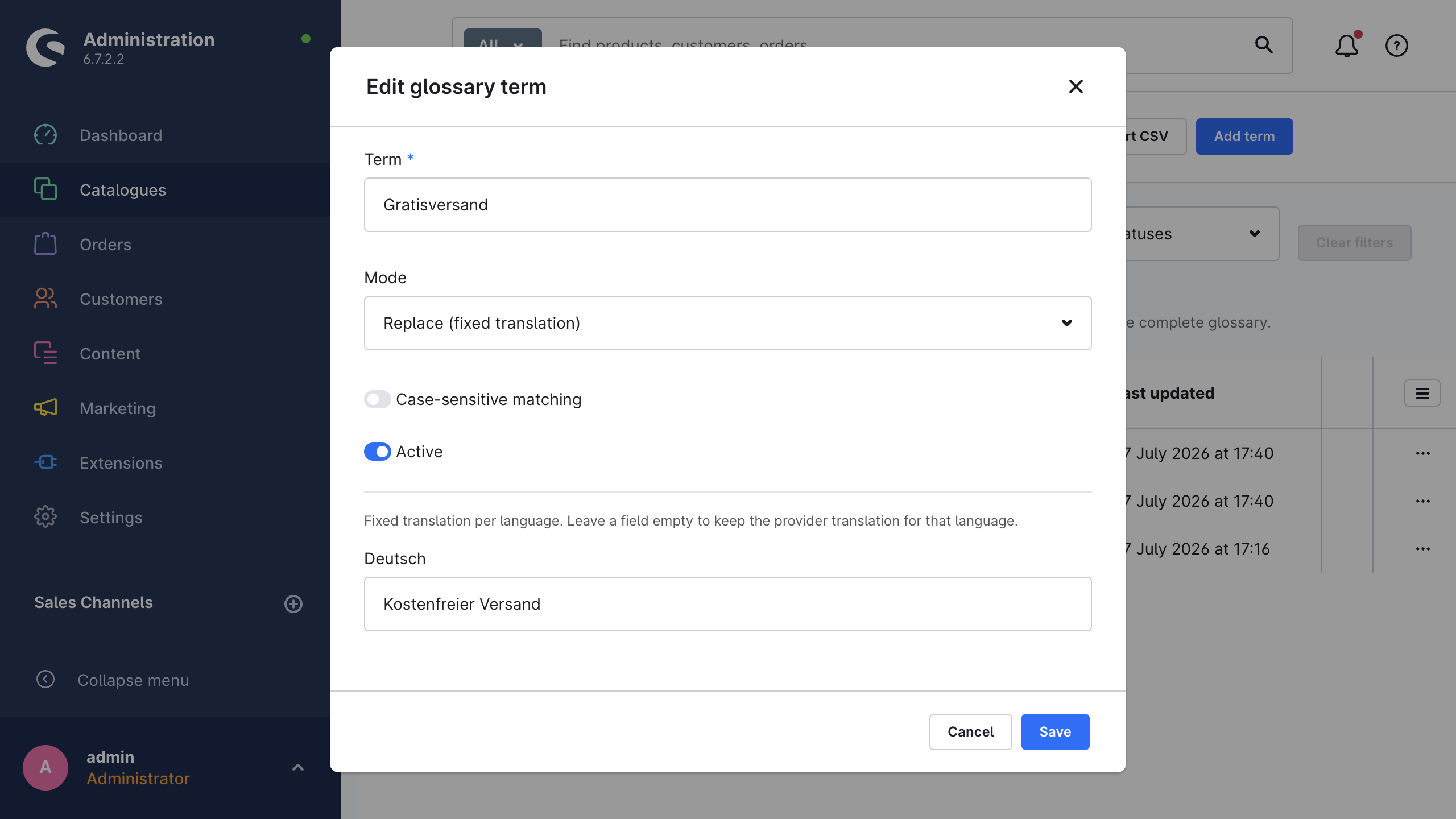
The editor shows one field for each target language, that is, each language in your shop except the system default language. Each field contains the value that this term must have in that language. In a shop without additional languages, the editor shows the message There are no additional languages in this shop yet.
Leave a field empty to keep the translation of the provider for that language. The editor shows the same rule as a hint: Fixed translation per language. Leave a field empty to keep the provider translation for that language. Keep terms need no values, because the extension protects them in each language.
Enable the glossary for a run
The extension applies the glossary by default. Two controls decide whether a run uses it:
| Where | Control | Default |
|---|---|---|
| Settings → Advanced → Translation behaviour | Apply glossary | On |
| Wizard, step Provider & options | Apply glossary | On |
The per-job switch has an effect only while the global setting is on. If you switch Apply glossary off in the settings, the glossary is off for each run, which includes automation, quick translations and the CLI. Quick translations from a product or a category always request the glossary, therefore they follow the global setting.
Automation jobs and CLI jobs always use the defaults, because they have no dialog in which you can switch anything off. Settings reference describes the setting, and Translation wizard describes the per-job option.
INFO
The extension applies the glossary to entity content: products, categories, Shopping Experiences, mail templates, custom fields and everything else in the content list. It translates storefront snippets without the glossary. Snippet values receive no keep protection and no replace post-processing. The extension still protects the placeholders in snippets. See Supported content.
CSV import and export
Import CSV and Export CSV are both in the smart bar of the glossary page. A note on the page describes the behaviour: CSV import creates new terms and updates existing terms with the same name. Export always includes the complete glossary.
File format
| Property | Value |
|---|---|
| Delimiter | ; |
| Header row | Required |
| Header columns | term;mode;caseSensitive;<localeCode>;<localeCode>;… |
| Encoding | UTF-8; the import accepts a byte-order mark and the export writes one |
| Export file name | nice-translate-glossary.csv |
The extension matches the first three column names without case sensitivity. Each further column is a locale code, and that code must belong to a language that your shop contains, for example de-DE or fr-FR. If a header contains a locale code that no language in the shop uses, the extension rejects the full import and writes nothing.
Column values
| Column | Accepted values | Empty means |
|---|---|---|
term | The term itself | The extension skips the row as invalid |
mode | keep or replace | keep; any other value skips the row |
caseSensitive | 1, true or yes for on (without case sensitivity) | Off; each other value also means off |
<localeCode> | The fixed translation for that language | No fixed translation for that language |
Example
term;mode;caseSensitive;de-DE;fr-FR
AcmePhone;keep;1;;
checkout;replace;0;Kasse;caisse
The extension protects AcmePhone in each language, and that term needs no values. It replaces checkout with Kasse in German and with caisse in French, in any capitalisation.
What an import changes
The extension matches the rows against the existing entries by term, and it ignores the capitalisation:
- It creates a term that does not exist yet, and sets it to active.
- It updates a term that already exists: the file replaces the mode, the case sensitivity and the fixed translations. A row with empty language columns therefore deletes the fixed translations of that term. An import never changes the Active flag of an existing term.
- Duplicate rows for the same term inside one file become one entry, and the last row wins.
After the import, a notification summarises the result: CSV import complete: {created} created, {updated} updated, {skipped} invalid rows skipped.
Export
Export CSV always downloads the full glossary, sorted by term, with the active and the inactive entries. The file has one locale column for each language in your shop. The export writes the case sensitivity as 1 or 0. You can edit the file and import it again to update the matching terms. Export, edit and import is therefore the practical way to maintain a large glossary outside the Administration.
Permissions
To read the glossary you need nice_translate.viewer. To add, edit and import entries you need nice_translate.editor. See Permissions (ACL).