

Translation wizard
Use the wizard to start a translation by hand. The wizard has four steps: select the content, select the target languages, select the provider and its options, then examine the cost estimate. After you confirm the estimate, the wizard creates one background job.
Open Catalogues → AI Translation and click New translation. The wizard needs the nice_translate.editor privilege, therefore read-only users do not see the button. See Permissions (ACL).
Each step must be valid before you can continue. You can go back to any completed step, and the wizard keeps your input.
Step 1: Content
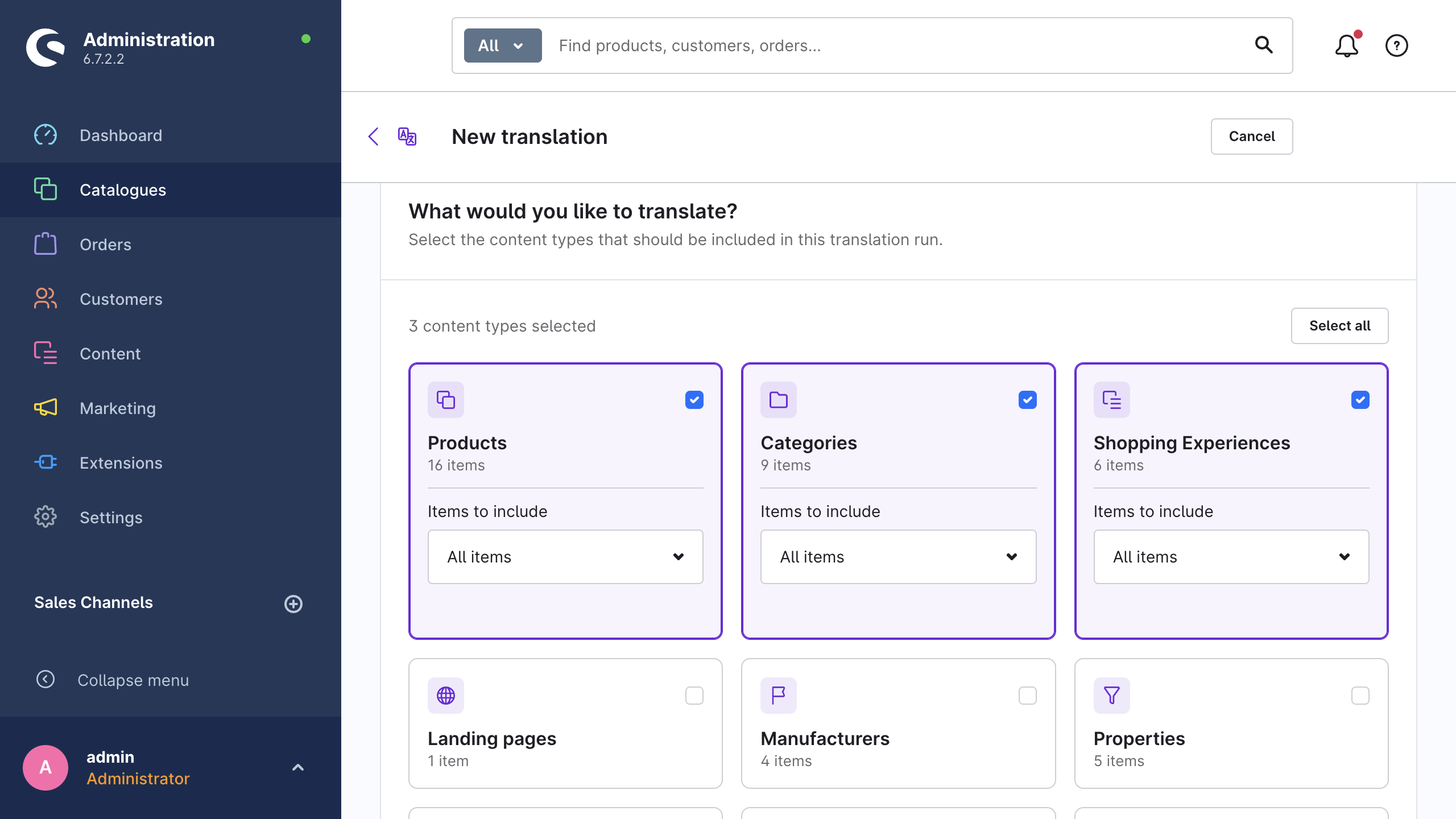
The What would you like to translate? card shows one tile for each supported content type. Each tile has a label and the number of records in the shop. Click a tile or its checkbox to include that content type. Select all and Deselect all set the full grid, and a counter above the grid shows how many content types you selected.
You must select a minimum of one content type before you can continue.
Items to include (scope)
Each selected tile expands into an Items to include select with two options:
| Option | What it enumerates |
|---|---|
| All items | Each record of that content type. |
| Only items without translation | Only the records that still have a minimum of one eligible field empty in the target language. |
You set the scope for each content type. One job can therefore cover "all products" and "only untranslated categories" at the same time. The default is All items.
Only items without translation examines individual fields. A product with a translated name and an empty description counts as missing.
Include custom fields
The Include custom fields switch is on the Products tile and is on by default. It applies to the full run: if you switch it off, the extension translates no customFields value of any selected content type.
Few custom fields are eligible. A field must be of the type text or HTML, and its definition must mark it as translatable. See Supported content.
INFO
The wizard has no field-by-field selector. Each eligible field of the selected content types goes into the run. To exclude a field permanently, from each run, use Excluded fields in the settings reference.
Step 2: Languages
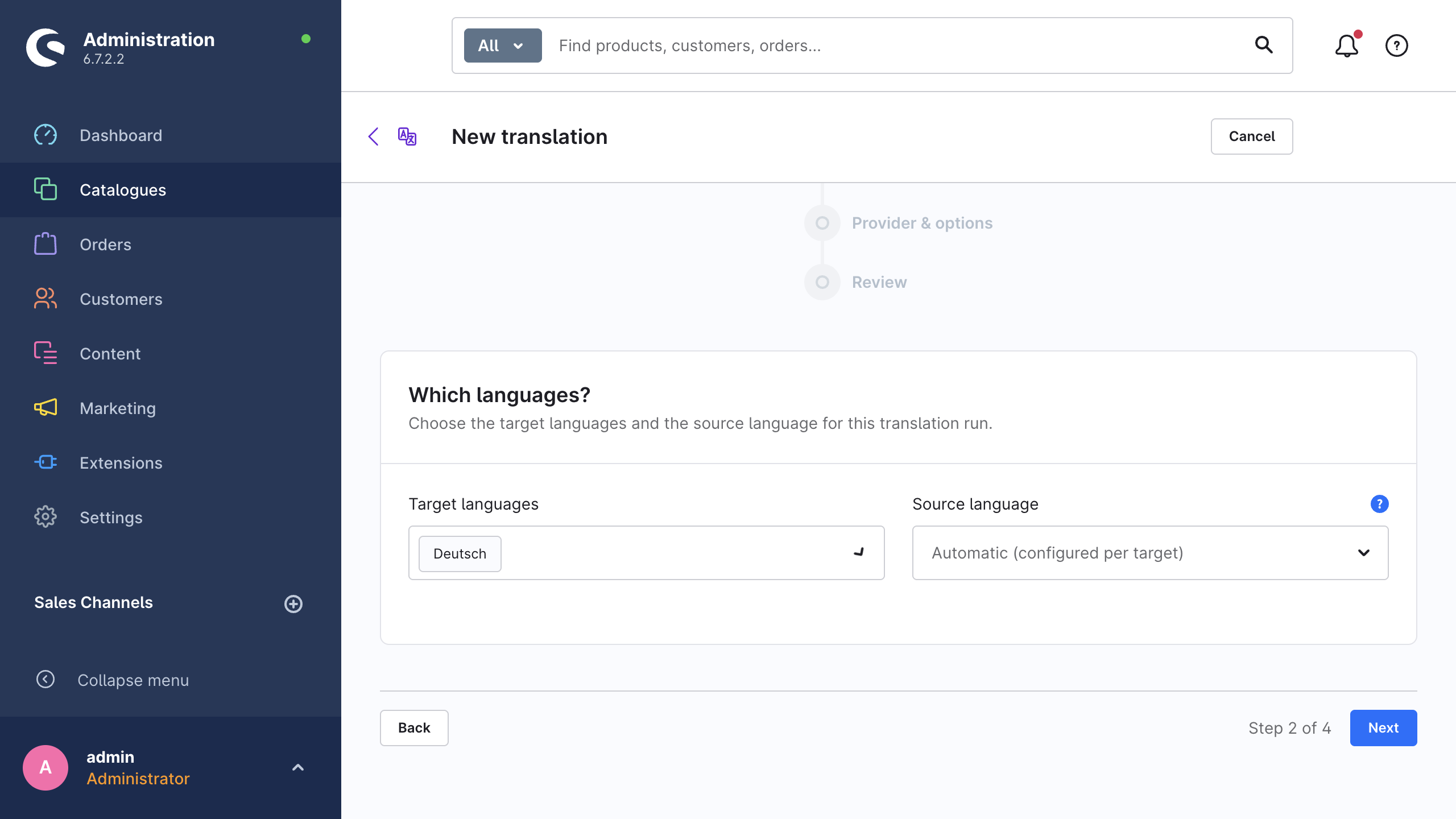
The Which languages? card contains both language fields.
Target languages is a multi-select over each language in the shop except the system language. If you leave it empty, the run covers every available target language, and an info banner lists the languages that the wizard resolved.
Source language is optional. Its placeholder shows Automatic (configured per target):
- If you leave it empty, each target language uses the source that you configured for it under Settings → Advanced → Source languages. The system language of Shopware is the fallback.
- Select a language here to override that configuration for this job only.
If you select the source language as a target language too, Next stays disabled and a message gives the reason: The source language is also selected as a target language. Please remove it from the target languages.
Languages that a provider cannot map
Locale support depends on the provider and on the account behind it. After an estimate exists, the wizard shows the language warnings on this step and on the review step:
- The locale "…" cannot be mapped for … The provider has no equivalent for that locale. Select a different provider for that language (see Translation providers) or delete the language from the run.
- Google Translate does not distinguish between British and American English — both variants are translated as generic English.
- One of the selected target languages no longer exists.
- Source and target language are identical for "…" — these items will fail.
Storefront snippets add two more warnings. Without a snippet set for the source locale, the extension skips the snippets. Without a snippet set for a target locale, it cannot translate the snippets into that language. In both cases, create the snippet set in Shopware first.
Step 3: Provider & options
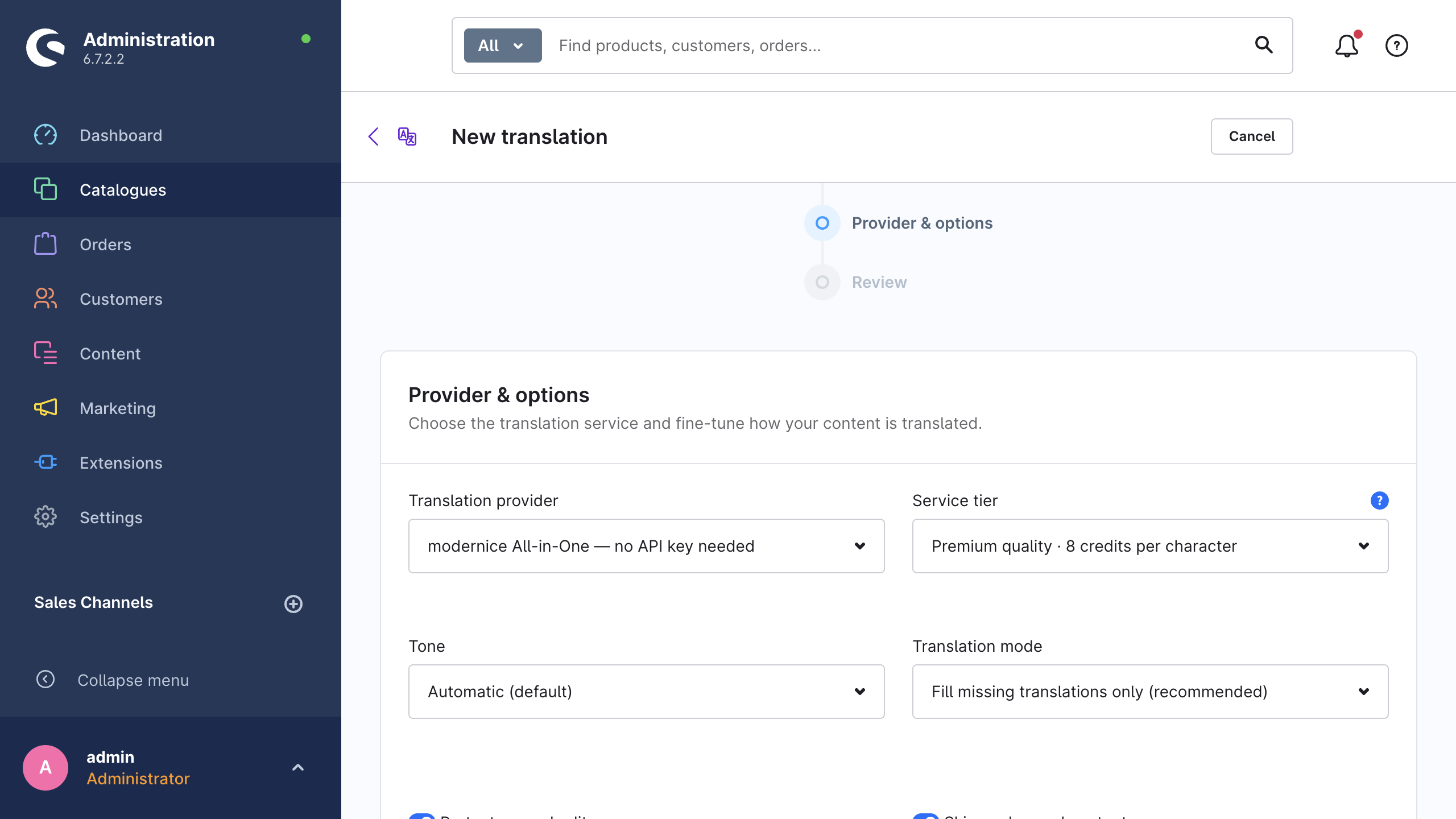
In the Provider & options card you select which provider translates, and how it translates.
Provider, service tier and model
Translation provider lists only the providers that you configured. A provider without an API key does not appear here. modernice All-in-One appears with the suffix — no API key needed. If you configured nothing at all, the wizard shows No translation provider is configured yet. Please add an API key in the settings or activate modernice All-in-One. and an Open settings button.
Service tier appears for modernice All-in-One only. Each label contains the credit multiplier: Speed · 1 credit per character, Balanced · 3 credits per character, Premium quality · 8 credits per character. A hint under the field explains the function of the tier: The tier controls translation quality and credit consumption; modernice selects the provider and model. See modernice All-in-One.
Model appears for the providers that expose a model list: OpenAI, Anthropic Claude, Google Gemini and Mistral. The field is prefilled with the model from the settings. If you select a different model and start the job, the extension writes the new selection back to the settings of that provider. If that write fails, the job still starts.
Tone and custom instructions
Tone has three options: Automatic (default), Formal (e.g. German "Sie") and Informal (e.g. German "Du"). It is prefilled from the global tone setting.
Custom instructions (AI providers) is a free-text field for OpenAI, Anthropic Claude, Google Gemini, Mistral and modernice All-in-One. It is prefilled from the global setting, and the extension sends it to the model together with the built-in translation prompt. The placeholder shows the intended shape: e.g. Never translate the brand name "Acme". Use short, active sentences.
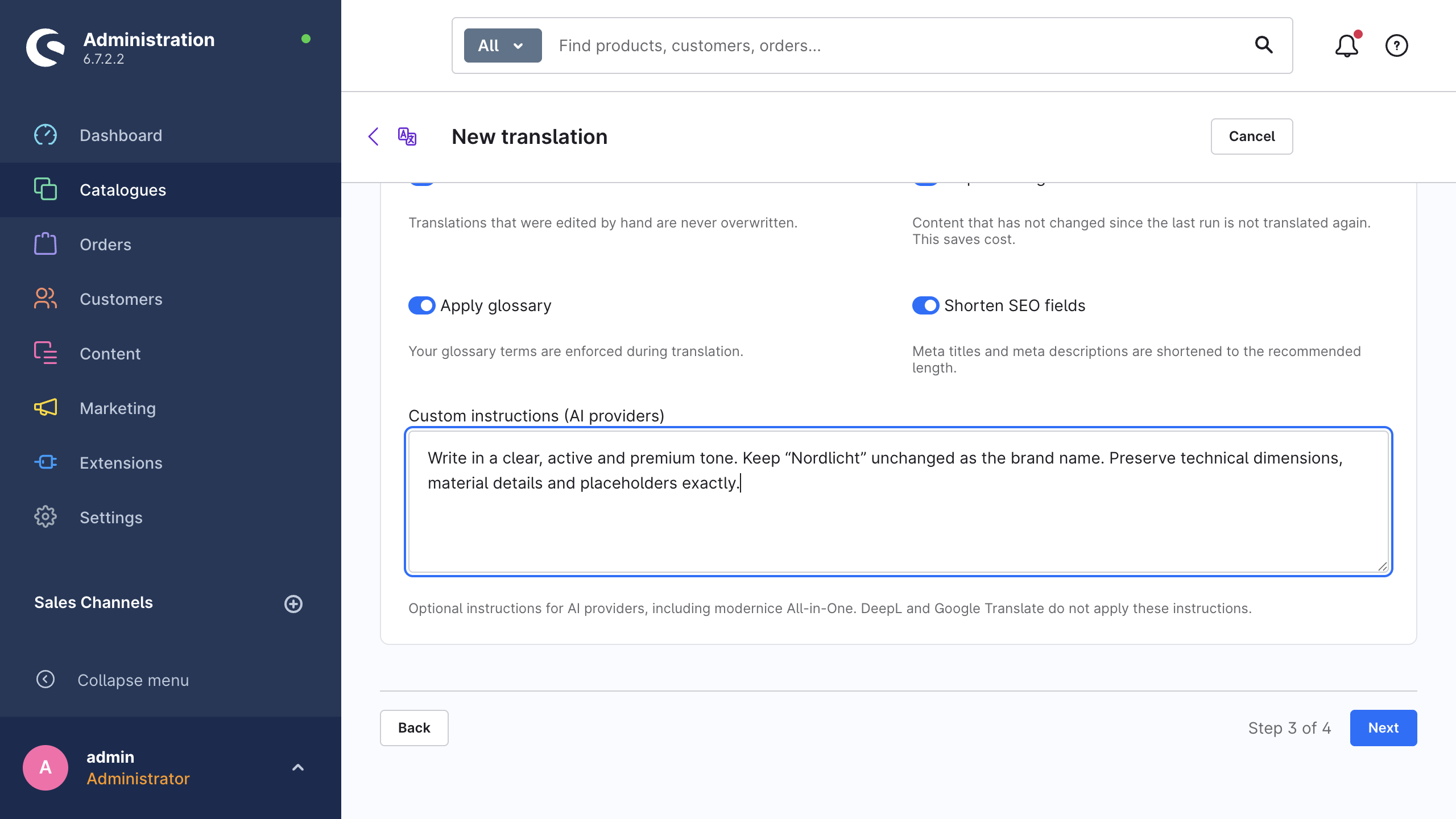
For DeepL and Google Translate the field is hidden, because these providers accept no free-text instructions. Their equivalents are the model type and the formality, both in the provider settings. See Translation providers.
Translation mode
Translation mode controls what the run does with the fields that already have a translation:
| Option | Effect |
|---|---|
| Fill missing translations only (recommended) | The run does not change a field that already has a translation in the target language. |
| Retranslate all fields | The run translates each eligible field again and overwrites the existing translation. |
If you select Retranslate all fields, the wizard shows this warning: "Retranslate all fields" overwrites existing translations in the target languages. Manually edited translations remain untouched while "Protect manual edits" is enabled.
Safety options
This step shows four safety switches, and all of them are on by default:
| Switch | What it does |
|---|---|
| Protect manual edits | The run never overwrites a translation that somebody edited by hand. |
| Skip unchanged content | The run does not translate content again if that content did not change after the last run. |
| Apply glossary | The run enforces your glossary terms during the translation. |
| Shorten SEO fields | The run shortens meta titles and meta descriptions to the recommended length. |
Safety mechanisms describes the machinery behind three of these switches: the fingerprints for the manual-edit protection and for skip-unchanged, the placeholder locking, and the truncation at a word boundary for SEO fields. Glossary describes the glossary terms and their two modes.
WARNING
Apply glossary here is a second gate on top of the global gate. The extension applies the glossary only when the global Apply glossary setting under Settings → Advanced is also on.
Step 4: Review
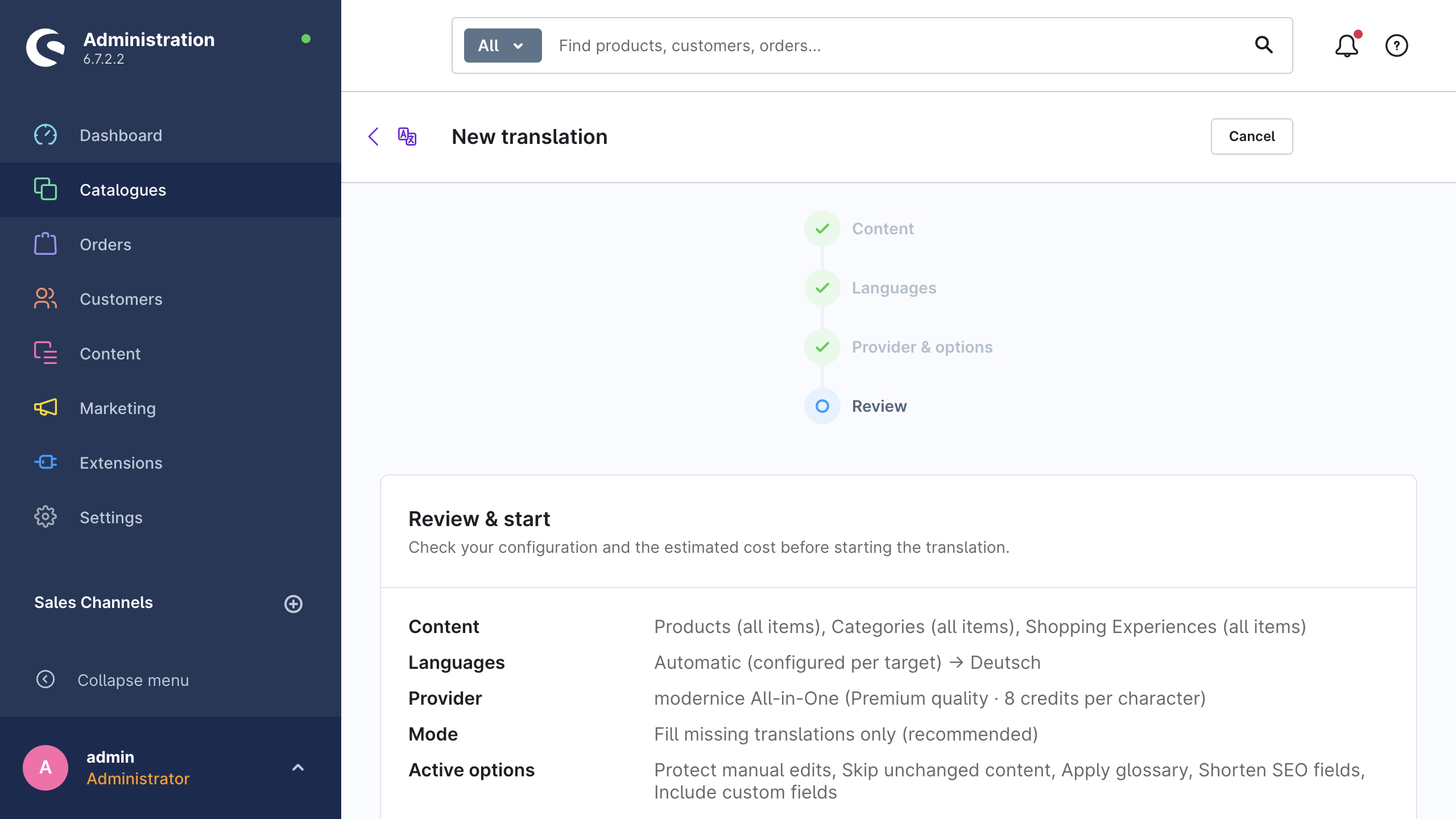
The Review & start card repeats your configuration in five rows: Content (each content type with its scope, all items or missing only), Languages (source → targets), Provider, Mode and Active options.
Below it, the Estimate card shows four values:
| Metric | Meaning |
|---|---|
| Items to translate | The number of records that the run will change. |
| Characters (estimated) | The source character volume across those records. |
| Estimated cost | The provider cost for that volume. For modernice All-in-One, Estimated credits replaces it. |
| Credits remaining | modernice All-in-One only: the credits that are left in the current billing period. |
The estimate refreshes each time that you change the configuration. For large content sets the wizard measures a subset of the records and extrapolates from it. A note under the card gives this warning: The estimate is based on sampling and may differ from the final result. In fill-missing mode a second line explains that the run skips the translated fields, therefore the real cost can be lower. The estimate is advisory, and the accounting of the provider is authoritative. See Cost & usage.
This step also lists the pre-flight warnings from the estimate: a provider without an API key (… is not configured yet. Add an API key in the settings before starting.), an unsupported content type, or a run through modernice All-in-One that needs more credits than the quota contains.
Start translation
Start translation creates the job. The button stays disabled while one of these conditions is true:
- the configuration is incomplete,
- the extension is still calculating an estimate, or a start is already in progress,
- you selected modernice All-in-One and no estimate arrived yet,
- the managed estimate is higher than the remaining credits.
After a successful start you see the notification The translation job has been started., and the wizard opens the detail page of the new job.
Scope and translation mode
The scope decides which records go into the job. The mode decides which fields inside those records the run writes. Both options use the word "missing", which is the reason for the confusion, and each option is on its own step.
| Scope | Mode | |
|---|---|---|
| Where | Step 1, for each content type | Step 3, once for the full job |
| Options | All items / Only items without translation | Fill missing translations only / Retranslate all fields |
| Decides | Which records go into the job | Which fields inside those records the run writes |
Together, the scope and the mode give four results:
| Scope | Mode | Result |
|---|---|---|
| All items | Fill missing translations only | The run examines each record and fills the empty target fields only. This is the safe default. |
| Only items without translation | Fill missing translations only | The job contains only the records with a gap, and the run fills their empty fields only. This is the fastest way to close gaps. |
| All items | Retranslate all fields | The run translates each record and each eligible field again, and overwrites the existing translations. |
| Only items without translation | Retranslate all fields | The job contains only the records with a gap, but the run translates each field of those records again. |
A narrow scope makes the job smaller, because fewer records go into it. The mode decides whether the run overwrites existing content. While Protect manual edits is on, hand-edited translations stay unchanged even in a full retranslation.
After you start
The queue workers of Shopware process the job in the background, therefore the workers must be active. The job detail page contains the progress, the counters, the per-record errors, the retry and the rollback. See Jobs & monitoring. While the history recording is on, the extension records each field that the run writes in the translation history.