

Jobs & monitoring
The queue workers of Shopware process each translation as a background job.
Catalogues → AI Translation → Jobs lists the jobs. The dashboard also has a Recent translation jobs panel with a Show all jobs link.
WARNING
The message consumer of Shopware processes the jobs. If no worker operates, the extension creates a job and that job stays Queued forever. Automation describes the workers that you need, and Troubleshooting helps when a job does not move.
The job list
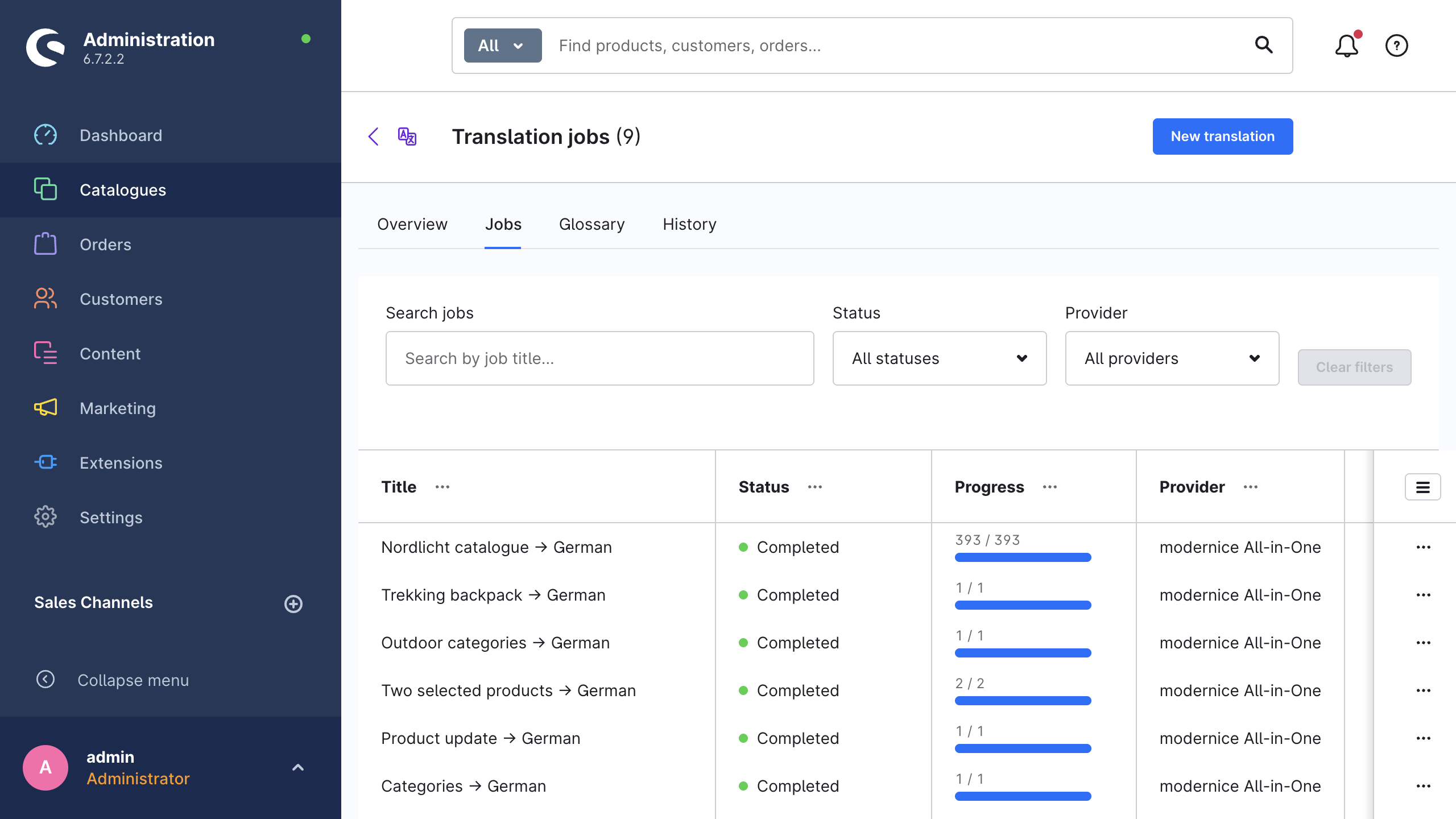
The list shows one row for each job, with the columns Title, Status, Progress, Provider, Characters, Cost / credits and Created. The title links to the detail page of the job.
Above the grid you find a Search jobs field that matches the job title, a Status filter, a Provider filter and Clear filters. While a minimum of one job is queued or running, the list refreshes itself every few seconds.
The context menu of a row contains View details, Cancel job and Retry failed items. Cancel job and Retry failed items need the nice_translate.editor privilege, and each command is disabled on a job that it does not apply to.
Statuses
| Status | Meaning |
|---|---|
| Queued | The extension created the job, and the job waits for a worker. If it stays here, your message queue workers do not operate. |
| Running | The extension built the work list and processes the batches. |
| Completed | The extension processed each item, and nothing failed. |
| Completed with errors | The job finished, but a minimum of one record failed. The detail page lists the failures. |
| Failed | The preparation broke while the job was still queued, therefore the extension never enumerated the content. The error banner on the detail page gives the reason. Only this path leads to Failed. A job that reached Running finishes as Completed or Completed with errors. |
| Cancelled | Somebody cancelled the job while it was queued or running. |
The job detail page
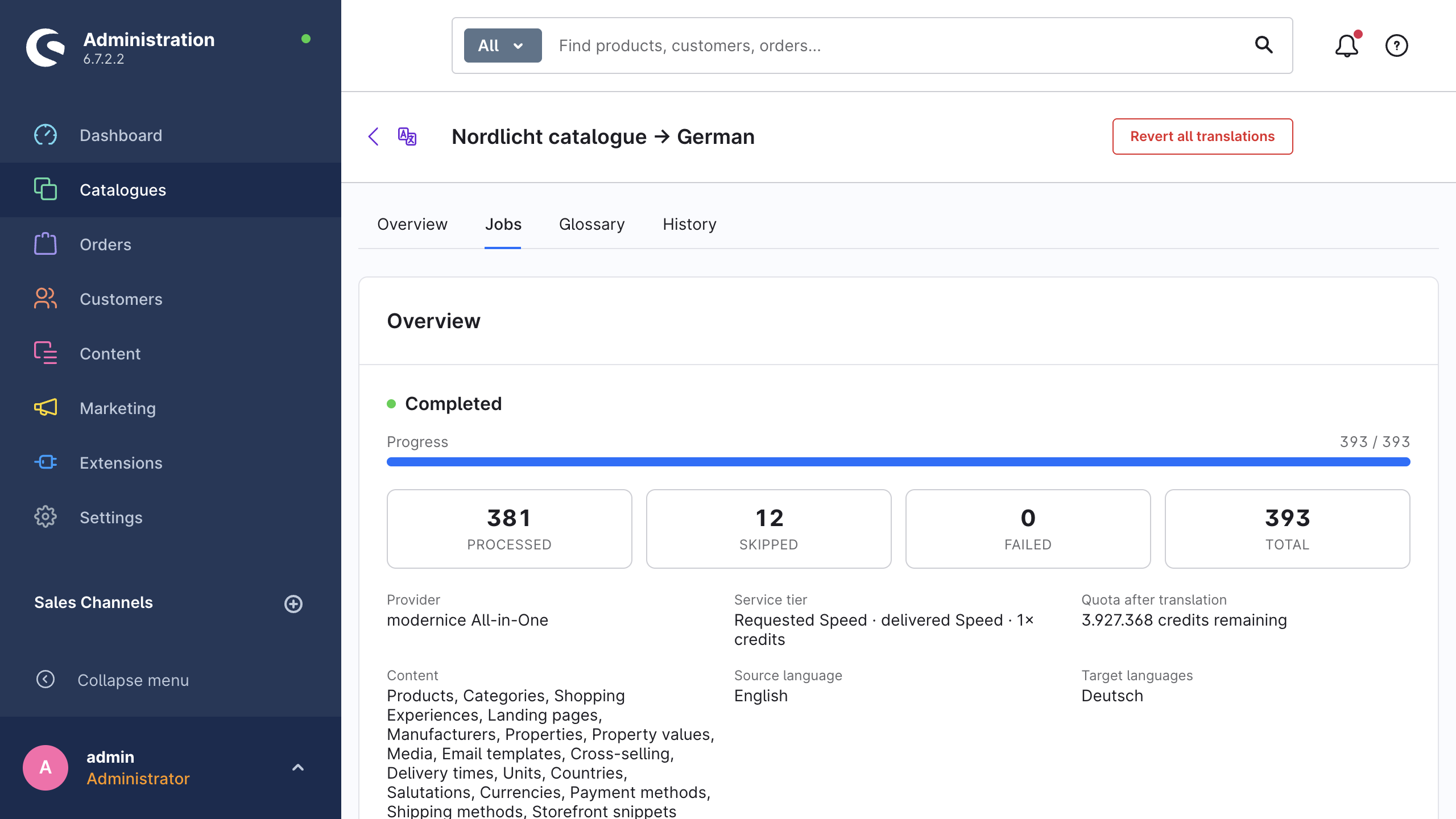
Open a job to see its status, a progress bar and four counters:
| Counter | Meaning |
|---|---|
| Processed | Records that the extension translated and wrote. |
| Skipped | Records that the extension examined but did not change, because nothing was missing, because they did not change after the last run, or because a manual edit protects them. |
| Failed | Records that the extension could not translate. |
| Total | Records in the work list of the job. |
Under the counters, the Overview card lists the configuration and the result of the job: Provider, Content, Source language (or Automatic (configured per target) when the job pinned none), Target languages, Billed characters, Cost / credits, Duration, Created, Started and Finished.
The extension calculates the cost figure itself. For machine translation it uses a price per source character. For LLM providers it uses the tokens that the provider reported. Prices change, and a live model can have no published price at all, therefore the value is informational. The invoice of your provider is the authoritative number. See Cost & usage.
A job through modernice All-in-One has two more rows: modernice All-in-One tier (the requested tier, the delivered tier and the credit multiplier) and Quota after translation (the remaining credits). The page then shows the cost in credits, without a currency amount. See modernice All-in-One.
While the job is queued or running, the page refreshes itself every few seconds.
The error list
A job with failures has an Errors card. Its title contains the failure count, and it has one row for each failed record, with the columns Content type, Item, Error message and Time. Each message states the actual cause. Common causes are an exhausted provider quota, an invalid key, an unsupported language pair, a missing snippet set and a lost placeholder.
INFO
The extension stores a maximum of 500 error rows per job. If more records fail, the failure counter is still correct, but the list of individual records stops at 500. Correct the cause and start the run again.
The extension retries rate limits, timeouts and temporary server errors automatically, with a bounded backoff, before they reach this list.
Retry failed items
Retry failed items queues exactly the records in the error list again. The command is available on a job with the status Completed or Completed with errors that has a minimum of one failure. A notification reports how many items went back into the queue: {count} failed items have been queued again.
The retry does not include the records that the extension translated only in part.
A retry keeps the configuration of the job. If the run failed because of a wrong setting, an unmappable language, a missing snippet set or an exhausted quota, correct that first. Without a correction, the retry fails in the same way.
Cancel a job
Cancel job stops a job with the status Queued or Running. The batches that are already in progress finish, the extension drops everything that did not start, and the job ends with the status Cancelled. A cancellation reverts nothing: the content that the job already wrote stays written. To undo that content, use the revert below.
Revert a whole job
Revert all translations appears on a completed job, with or without errors, for the users with nice_translate.editor. The confirmation dialog states exactly what will happen:
All translations written by this job will be reverted to their previous values in the background. Fields that were edited manually after the translation are protected and will be skipped.
After you confirm, the extension puts the revert on the low-priority queue, outside the request. The success message contains the number of items: Revert queued — {items} translations will be reverted in the background. The history below updates as they are processed.
You cannot revert a job that is still queued or running. Cancel it first, then revert what it wrote. The extension also rejects a job without applied history entries, and a message gives the reason.
The extension skips the fields whose current value no longer agrees with the value that the job wrote. If no translation existed before the job, the revert deletes the translation again.
WARNING
A revert depends on the recorded history. If the history recording was off during the run, or the entries passed the retention period, there is nothing to revert to. See Translation history.
Field-level history inside a job
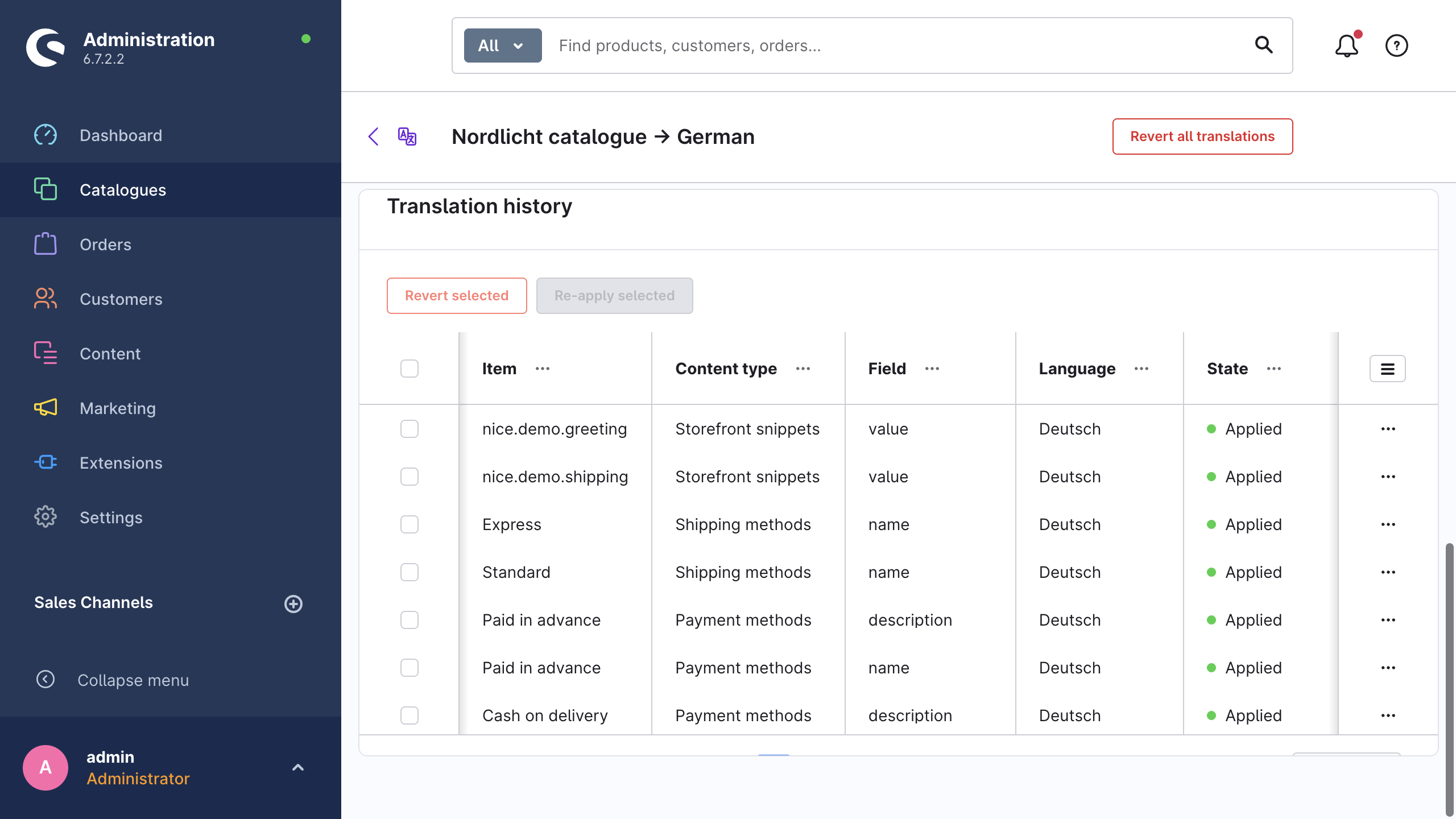
Each job detail page ends with a Translation history card. The card lists each field that the job wrote: Item, Content type, Field, Language, State (Applied or Reverted) and Translated at.
You can select rows here and use Revert selected or Re-apply selected. Show values on a single row shows the previous value and the new value side by side, with the option to revert that one field. This is the same grid as the global history, scoped to this job.
Translation history documents the filters, the value comparison, the skip reasons and the retention period.
Quick translate
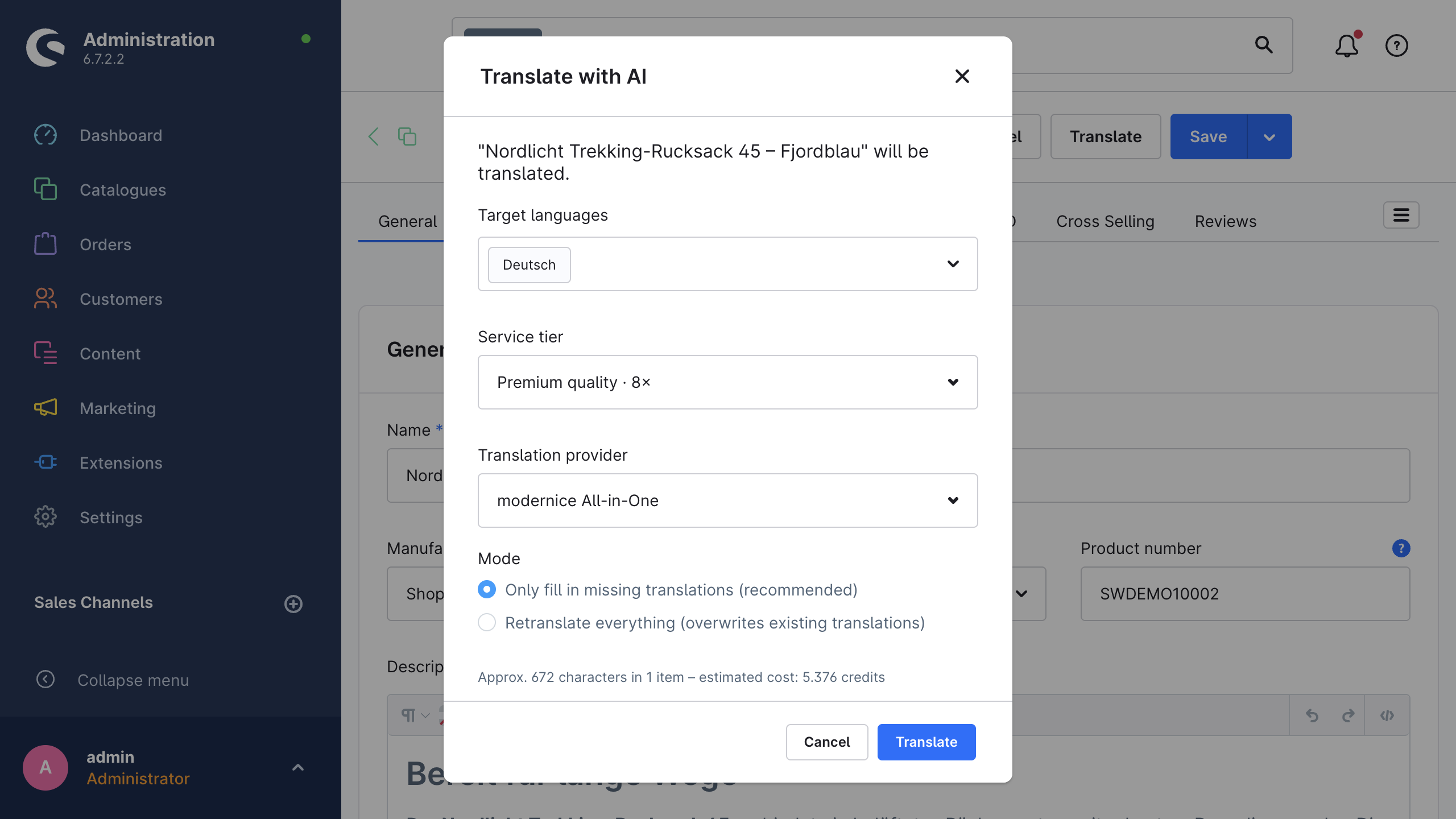
Quick translate creates a normal job for a small, known selection, and you do not complete the wizard for it. It is available in three places, and all of them need nice_translate.editor:
| Where | How |
|---|---|
| Product detail page | The Translate button in the smart bar. |
| Category detail page | The Translate button in the smart bar. Landing pages that you edit in the same view do not offer it. |
| Product list | Select the products, then use Translate in the bulk actions. |
The Translate with AI dialog states what will happen (This product will be translated., {count} selected products will be translated.) and asks for four items only:
- Target languages
- Translation provider
- Service tier, for modernice All-in-One only
- Mode, either Only fill in missing translations (recommended) or Retranslate everything (overwrites existing translations)
The dialog fixes everything else to the safe defaults. The manual-edit protection, skip-unchanged, the glossary and the SEO shortening are on. The run includes the custom fields, uses a neutral tone and sends no custom instructions. The extension resolves the source language from your configuration.
After you select a minimum of one target language, an estimate line appears: Approx. {characters} characters in {items} – estimated cost: {cost}. With modernice All-in-One the dialog shows the cost in credits, and it blocks Translate when the estimate is higher than your remaining credits.
After you confirm, Translation started appears with an Open translation job action that goes directly to the detail page of the new job.
One provider per job
Each job uses exactly one provider, and the extension selects that provider once, when it creates the job. Individual records cannot override it, therefore each cost figure and each error on a job belongs to that one provider.
Scheduled automation shows this in practice. Under Settings → Providers → Providers by target language you can map different providers to different target languages. A scheduled run then groups its target languages by their resolved provider, and creates one job per provider. Each job has the title Scheduled (<Provider>): …. After such a run you can therefore see several jobs at the same time, and each one covers the languages that resolved to its provider.
To use two providers in one manual translation, complete the wizard two times.
Related pages
- Translation wizard for the configuration of a run before it becomes a job.
- Automation for the on-save runs, the scheduled runs and the workers that a job needs.
- Cost & usage for the calculation of the cost on a job.
- Events & Flow Builder for a reaction to a finished job in a Flow.