

Translation providers
The AI Translation Suite translates through one of six providers, and you connect each one with your own API key. If you do not want to manage provider accounts, use modernice All-in-One.
Machine translation and AI models
The six providers form two groups. The group that you select decides how the provider bills you, and how much control you have over the wording.
| Machine translation (DeepL, Google Translate) | AI models (OpenAI, Anthropic, Gemini, Mistral) | |
|---|---|---|
| Billed by | source characters | input tokens and output tokens |
| Model choice | none; DeepL offers a model type | yes, from a curated list and a live list |
| Tone of voice | DeepL only, through its Formality setting | Tone of voice: Neutral, Formal or Informal |
| Custom instructions | not supported | added to the built-in translation prompt |
| Glossary | keep terms are protected; replace terms are advisory, because post-processing reaches them only while the source term is still recognisable | keep terms are protected; the extension also sends replace terms to the model as instructions |
| Typical use | large catalogues with a predictable price per character | brand voice, wording rules, difficult copy |
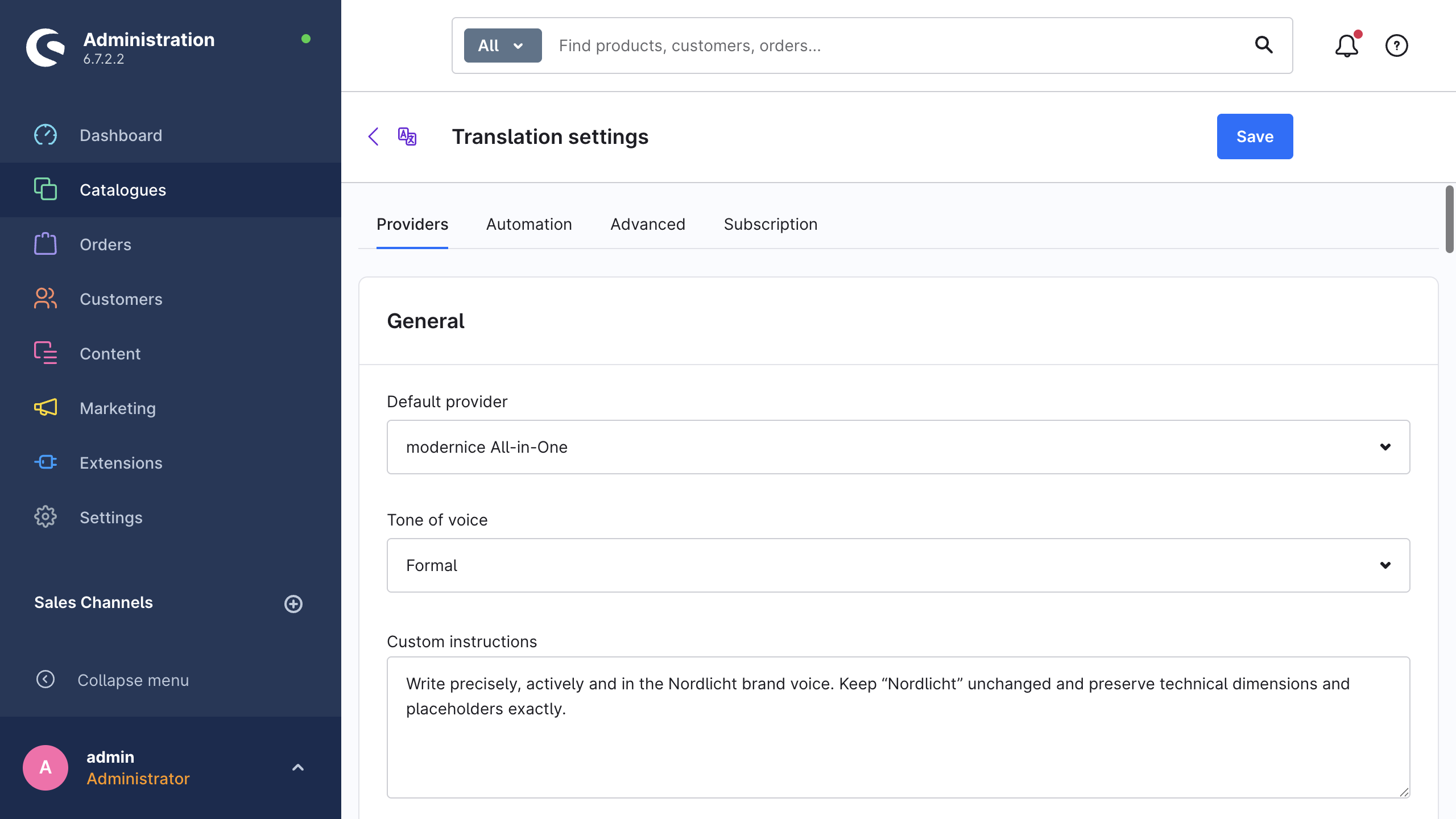
Tone of voice and Custom instructions are on the Providers tab of the translation settings, and they reach the AI providers only. DeepL and Google Translate ignore both of them. DeepL has its own Formality setting for the same purpose.
Both groups receive HTML in a format that they understand, and the placeholder protection and the glossary apply to both. See Safety mechanisms and Glossary.
The six providers
| Provider | Id | Type | Where to get a key | Default model |
|---|---|---|---|---|
| DeepL | deepl | Machine translation | DeepL account → API keys | — (no model choice; Model type defaults to Prefer quality-optimised) |
| Google Translate | google | Machine translation | Google Cloud console | — |
| OpenAI (ChatGPT) | openai | AI model | platform.openai.com | gpt-5.6-luna |
| Anthropic Claude | anthropic | AI model | console.anthropic.com | claude-opus-5 |
| Google Gemini | gemini | AI model | Google AI Studio | gemini-flash-lite-latest |
| Mistral | mistral | AI model | console.mistral.ai | mistral-small-latest |
A seventh entry, modernice All-in-One, appears in the provider lists after you activate the modernice All-in-One plan. It needs no API key, and the wizard shows it as modernice All-in-One — no API key needed.
One key is sufficient to start. The provider ids in the table are the values that the CLI and the Admin API use.
Add and test a key
- Open Catalogues → AI Translation, click Settings and go to the Providers tab.
- Paste the key into API key on the card of that provider.
- Click Test connection.
- Click Save.
The test sends the key that the field contains at that moment. You can therefore verify a key before you save it. After a successful test the card shows API key is valid — connection to the provider works. After a failed test it shows the error message of the provider, or The connection test failed. Please check the API key and try again. The extension never echoes your key back.
Each card has a Configured or Not configured badge. The badge follows the stored key, therefore a key that you typed but did not save leaves the badge unchanged.
The test of each provider examines something different, and only DeepL reports a quota:
| Provider | What the test does | Quota shown |
|---|---|---|
| DeepL | Asks DeepL for the usage of the account | Yes: {used} of {limit} characters used with a progress bar, or {used} characters used when the account has no limit |
| Google Translate | Requests the list of supported languages | No |
| OpenAI (ChatGPT) | Requests the model list | No |
| Anthropic Claude | Requests the model list | No |
| Google Gemini | Requests the model list | No |
| Mistral | Requests the model list | No |
A successful test also refreshes the live model list of that provider. A new key therefore widens the Model dropdown immediately.
TIP
bin/console nice-translate:providers --test performs the same validation for each configured provider from the command line, and prints the quota where a provider reports one. See CLI commands.
DeepL
- Create a DeepL API account, API Free or API Pro: https://www.deepl.com/pro-api
- Copy your key from https://www.deepl.com/your-account/keys
- Paste it into Settings → Providers → DeepL, click Test connection, then click Save.
Notes:
- API Free keys end in
:fx. The extension detects that suffix and uses the free endpoint of DeepL by itself. - Formality (Provider default, More formal, Less formal) goes only to the target languages where DeepL supports it: German, French, Italian, Spanish, Dutch, Polish, Brazilian Portuguese, European Portuguese, Japanese and Russian. The other target languages translate without it.
- Model type has three options: Prefer quality-optimised (recommended), Quality-optimised only and Latency-optimised (faster). For each option, the extension sends DeepL the "prefer" variant, which also translates a language pair that does not offer that model type.
- DeepL is the built-in fallback. If no default provider and no per-language mapping apply, the extension uses DeepL.
Google Translate
- In the Google Cloud console, create or select a project.
- Enable the Cloud Translation API: https://console.cloud.google.com/apis/library/translate.googleapis.com
- Create an API key under APIs & Services → Credentials: https://console.cloud.google.com/apis/credentials
- Recommended: restrict the key to the Cloud Translation API.
Notes:
- The card contains the API key only. It offers no model choice and no formality choice.
- Google Translate does not distinguish between British and American English, and it translates both as generic English. The wizard gives this warning before a run with the target
en-GBoren-US. - The extension maps the locale variants that Google expects, which include
pt-PTandpt-BR, Simplified Chinese and Traditional Chinese, and Norwegian Bokmål.
OpenAI (ChatGPT)
- Create a secret key at https://platform.openai.com/api-keys
- Set up billing for your organization: https://platform.openai.com/settings/organization/billing
- Select a Model on the card.
Curated models:
| Model | Tier |
|---|---|
gpt-5.6-luna (default) | Budget — ideal for bulk |
gpt-5.6-terra | Balanced |
gpt-5.6-sol | Flagship — top quality |
gpt-5.5 | Previous generation |
gpt-5.4-mini | Previous generation |
The live list contains the gpt- text models of OpenAI only. It excludes the audio, image, embedding, moderation, search and code variants.
Anthropic Claude
- Create a key at https://console.anthropic.com/settings/keys
- Select a Model on the card.
Curated models:
| Model | Tier |
|---|---|
claude-opus-5 (default) | High quality |
claude-fable-5 | Flagship — top quality |
claude-sonnet-5 | Balanced |
claude-haiku-4-5 | Budget — ideal for bulk |
claude-opus-4-8 | Previous generation |
A dated model id from the live list (<model>-YYYYMMDD) takes the tier and the price of the curated model that it belongs to.
Google Gemini
- Create an API key in Google AI Studio: https://aistudio.google.com/apikey
- Select a Model on the card.
Curated models:
| Model | Tier |
|---|---|
gemini-flash-lite-latest (default) | Budget — ideal for bulk |
gemini-3.6-flash | High quality |
gemini-3.1-pro | High quality |
gemini-3.5-flash | Previous generation |
gemini-3.1-flash-lite | Previous generation |
The extension migrates the retired ids gemini-2.5-flash-lite and gemini-3.5-flash-lite to gemini-flash-lite-latest automatically. The live list offers only the Gemini models that can generate content, and it excludes the image, audio, embedding and vision variants.
Mistral
- Create a key at https://console.mistral.ai/api-keys
- The default model is
mistral-small-latest(Balanced).
The live list excludes the embedding, OCR, moderation, transcription, audio and code models.
Curated and live model lists
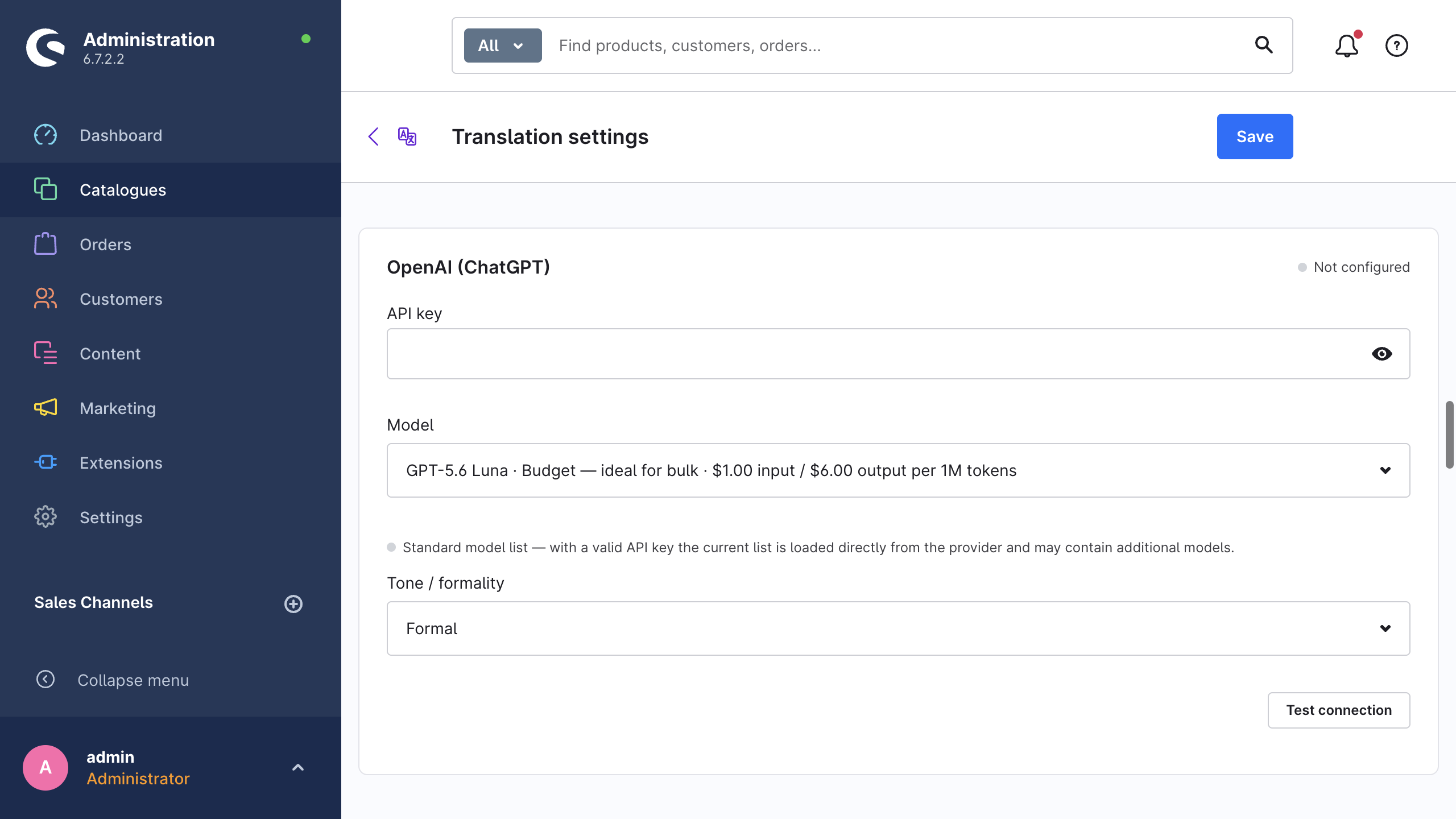
Each AI provider comes with a curated list: some models that the extension knows by display name, quality tier and price. The dropdown shows them as Name · Tier · $x.xx input / $y.yy output per 1M tokens.
The extension requests the current model list of the provider after you store a key, and immediately after a successful Test connection. It then merges that list over the curated data:
- The models that the extension already knows keep their name, tier and price, and stay at the top of the list.
- The extension adds the other models from the provider at the end of the list, without a tier and without a price (pricing: see provider website).
- The merged list has a maximum of 30 entries.
The hint under the dropdown names the list that you see: Model list loaded live from the provider, or Standard model list — with a valid API key the current list is loaded directly from the provider and may contain additional models. If the live request fails, the card keeps the curated list.
A model that you already saved stays selectable, even when the live list exposes only a variant of it with a different name.
WARNING
The provider bills a model without a listed price in the usual way. The extension has no price for that model, therefore its calculated cost on the usage dashboard is an indication only. Read the price list of the provider before you start large jobs on such a model.
Feature support
| Provider | HTML | Formal or informal address | Glossary terms sent to the provider |
|---|---|---|---|
| DeepL | Yes | Yes, with the Formality setting on the DeepL card | No |
| Google Translate | Yes | No | No |
| OpenAI (ChatGPT) | Yes | Yes, with Tone of voice | Yes |
| Anthropic Claude | Yes | Yes, with Tone of voice | Yes |
| Google Gemini | Yes | Yes, with Tone of voice | Yes |
| Mistral | Yes | Yes, with Tone of voice | Yes |
| modernice All-in-One | Yes | Yes, with Tone of voice | Yes |
Two settings control the formal or informal address (German Sie against Du). The AI providers follow Tone of voice (Settings → Providers → General). DeepL uses its own Formality setting, and only in the languages where DeepL supports formality. Google Translate offers no control over the address.
The last column shows only whether the extension sends the glossary terms to the provider as instructions. Keep mode operates with each provider: the extension locks the keep terms before the request and puts them back afterwards. For replace terms, the extension also post-processes the returned text. That post-processing can replace the source term only while the term is still recognisable in the output. DeepL and Google Translate receive no glossary instruction at all, therefore replace terms stay advisory for them. Use keep mode when a term must be protected in each language. See Glossary.
A provider per target language
Under Settings → Providers → Providers by target language you assign a provider to each target language. A language that stays on Use default provider follows the general setting.
The extension resolves a provider in this order:
- The provider that Providers by target language maps to that target language.
- The Default provider from the General card.
- DeepL, as the built-in fallback.
Two cases bypass this mapping:
- Manual translations use the provider that you select in the wizard or in the quick-translate dialog.
- Automation follows the mapping only while Settings → Automation → Provider stays on Use language mapping / default. If you select a provider there, that provider applies to each target language. See Automation.
A mix of providers is a practical way to control the cost: send the high-volume languages to a cheap machine-translation provider, and keep an AI model for the languages where the wording is important. See Cost & usage.
Where your content goes
With your own API keys, the requests go directly from your server to the provider that you configured, under your own contract with that provider. With modernice All-in-One, the requests go through modernice. The managed pool operates under zero data retention, therefore the provider that serves each request keeps no copy of the text. On your own key, zero retention is a separate agreement between you and each provider. The Data protection page describes both cases and the retention. Document the mode that you enable in your own privacy information.
Related pages
- modernice All-in-One: how to translate without your own provider accounts.
- Cost & usage: the estimates, the usage dashboard and the cost control.
- Settings reference: each field on the Providers tab with its default.
- Troubleshooting: failed connection tests and provider errors.