
Quick Start
Prerequisite: the extension is installed and activated.
1. Connect a provider
Open Catalogues → AI Translation and click Settings. Two options are available, and one option is sufficient.
Your own API key: On the Providers tab, paste the key of your provider into the field. Click Test connection, then click Save. The AI providers also let you select a model, and the preselected model is a good start. See Translation providers.
modernice All-in-One: On the Subscription tab, select a plan and click Subscribe. The purchase goes through the dialog of Shopware, and the shop must have a connection to the Shopware Store. See modernice All-in-One.
2. Start a translation
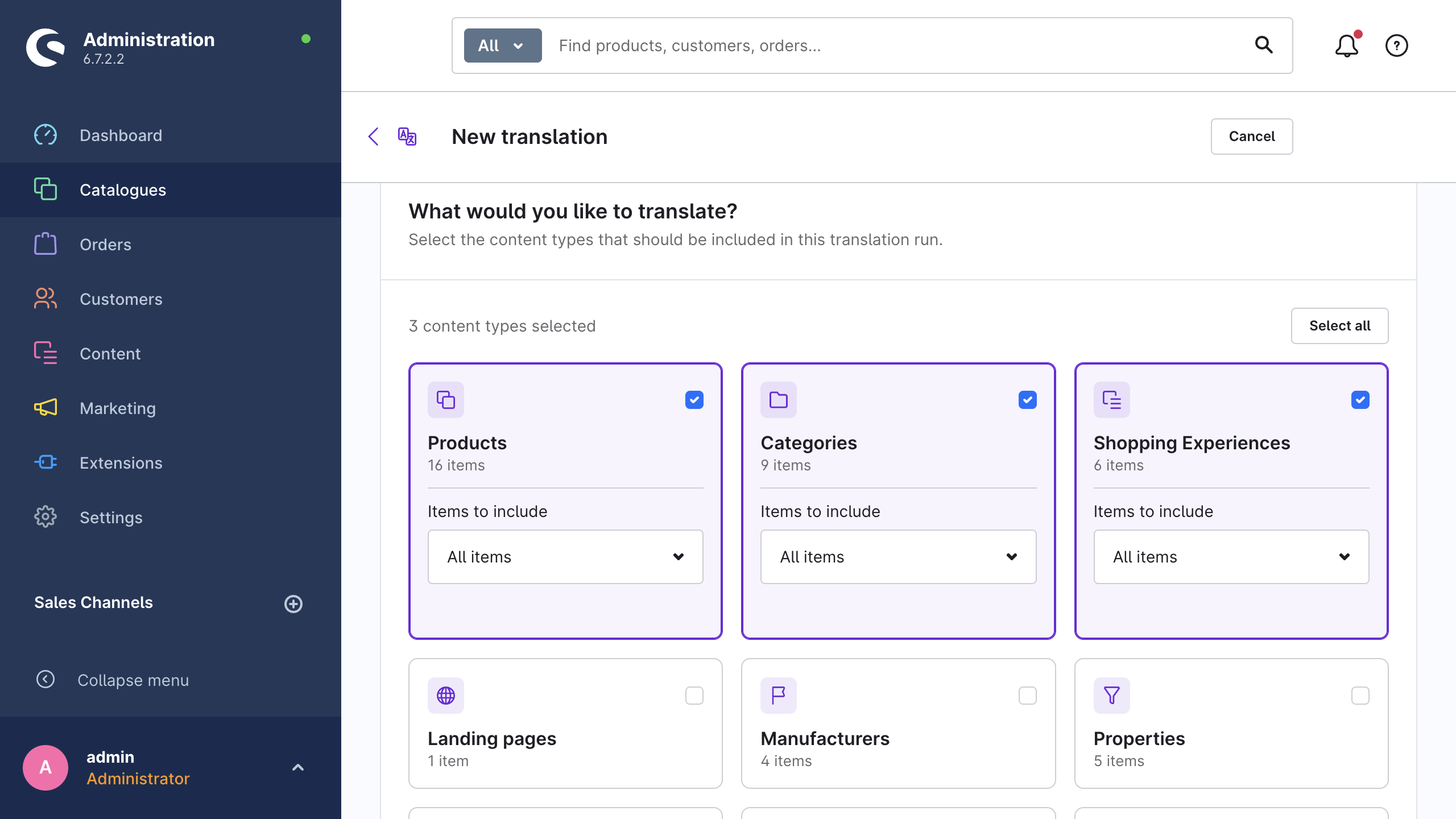
Under Catalogues → AI Translation, click New translation. Then complete the four steps of the wizard:
- Content: For a first run, select one content type such as Products, with the scope Only items without translation.
- Languages: Select one target language. Source language can stay empty, because the extension determines it automatically.
- Provider & options: Select your provider. For a first run, keep the other options unchanged.
- Review: Examine the cost estimate and click Start translation.
The queue workers process the translation in the background. The job page shows the progress. Failed items are listed under Errors. After you correct the cause, click Retry failed items to translate them again.
TIP
If a job stays at Queued, your system does not process the Shopware message queue. Troubleshooting describes the setup.
3. Examine the result
Open one of the translated products in the Administration and set the language selector to the target language. As an alternative, open the product in the storefront of that language.
Catalogues → AI Translation → History lists each written field with its previous value and its new value. From there you can revert one translation or the full run.
If the result is not correct, three corrections usually help: a different model, a glossary entry for your brand names, or custom instructions in the settings.
Next steps
- Supported content: which content types and fields the extension translates.
- Glossary: how to keep brand names untranslated and how to enforce fixed translations.
- Automation: how to translate on save and on a schedule.
- Troubleshooting: what to do when a job does not behave as expected.