

Safety mechanisms
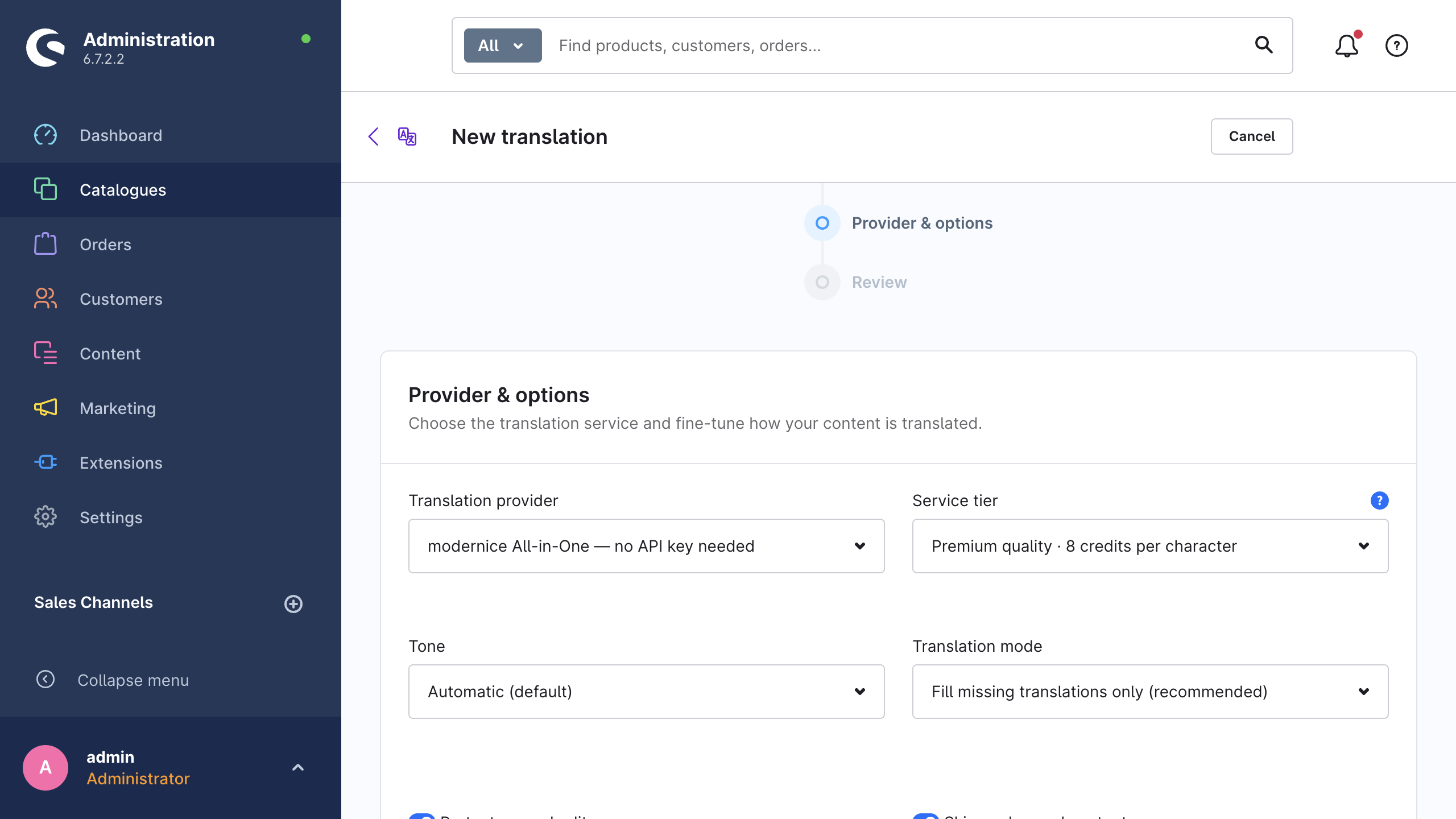
You can set four of the mechanisms on this page for each job, in the Provider & options step of the wizard: Protect manual edits, Skip unchanged content, Apply glossary and Shorten SEO fields. All four are on by default. The other mechanisms are always active.
Placeholder protection
Shop content contains many tokens that must stay unchanged during the translation. Before a text leaves the shop, the extension replaces each such token with a protection marker. After the provider answers, the extension puts the original token back unchanged.
| Pattern | Example |
|---|---|
| Twig output | {{ product.name }} |
| Twig tags and blocks | {% if … %} |
| Snippet placeholders | %customerName% |
| Single-brace placeholders | {0}, {count} |
printf-style placeholders | %s, %d |
| URLs | https://example.com/page |
The protection covers exactly these patterns. It does not examine the position of a marker in the answer. A translation can therefore come back with a placeholder in the wrong position.
If a marker does not come back from the provider, the extension makes no guess. It records that field as failed and writes nothing, and the job error list gives the reason. The extension writes the other fields of the same record in the usual way.
This mechanism has no setting. It is always active, for each provider and each job.
HTML handling
Some fields contain rich text: product descriptions, category descriptions and HTML mail templates. The extension recognises these fields as HTML and translates them separately from the plain-text fields.
- Machine-translation providers receive the text in their native HTML mode. DeepL and Google Translate process the markup themselves and translate the visible text only.
- Language models receive four explicit instructions. Keep all HTML tags, attributes and entities exactly. Add no markup. Delete no markup. Keep the length of each translation near the length of the source.
WARNING
The extension does not compare the structure of the returned HTML against the source. An automatic check therefore does not detect a model that silently deletes a <strong> tag or joins two paragraphs.
That gap has two practical consequences:
- Test representative rich text on a staging shop before your first bulk run, with the provider and the model that you intend to use. Test one long product description, one CMS text and one HTML mail template.
- Keep the translation history on. The history is the rollback path for output with an unsuitable structure.
SEO length limits
Some translated fields have a maximum length in Shopware. Merchants usually notice this on meta titles and meta descriptions. A translation is frequently longer than its source, therefore a translated meta title can exceed the limit of the field.
The Shorten SEO fields switch (on by default) controls what happens in that case:
| Shorten SEO fields | Behaviour when the translation is too long |
|---|---|
| On | The extension cuts the value at a word boundary, adds an ellipsis and writes the field |
| Off | The extension records the field as failed, with the reason that the translation exceeds the maximum length, and the previous value stays in place |
The cut is multi-byte safe, and it prefers the last word boundary in the second half of the permitted length. It therefore does not cut a word in the middle. The extension writes each truncation to the Shopware log, with the entity, the record id, the field and the limit. Read the log when a meta title is shorter than you expect.
Two limits apply here. The extension enforces the maximum length of the field as Shopware defines it. SEO guidance about the ideal snippet length has no function in that decision. The shortening also only prevents the failure of the write. It cannot make the translation itself shorter.
The setting is global under Settings → Advanced → Translation behaviour, and per job in the wizard.
Manual-edit protection
The extension stores a fingerprint of each value that it writes. Before it translates a field again, it compares the current translation with that fingerprint. If the two values are different, somebody edited the translation by hand. The extension then skips the field and writes the skip to the Shopware log.
This also applies in Retranslate all fields mode. When you select that mode, the wizard shows the notice "Retranslate all fields" overwrites existing translations in the target languages. Manually edited translations remain untouched while "Protect manual edits" is enabled.
The fingerprints cover only the values that this extension wrote itself, which leaves two gaps:
- A translation that existed before the first run of the extension has no fingerprint. In Retranslate all fields mode the extension can therefore overwrite it. To protect the hand-written translations from before the installation, use fill missing mode, or exclude those fields under Settings → Advanced → Excluded fields.
- If you switch Protect manual edits off for one job, the protection is off for that job.
A revert or a re-apply from the history synchronises the fingerprints again. A later run therefore does not read a restored value as a manual edit.
Skip unchanged content
The extension also fingerprints the source text of each field that it translates. On the next run it compares that fingerprint. If the source did not change, it does not send the field to the provider again.
This gate needs a previous run for the comparison. A field that the extension never translated has no source fingerprint, and the extension always processes it. The extension makes each decision for one field and one language: if you change a product name, the next run translates the name again and does not change the description.
The extension evaluates the field-level decision in this order:
- In fill missing mode, the extension skips a field that already has a translation.
- The extension translates a field without a stored fingerprint, and a field without a current translation.
- With Skip unchanged content on, the extension skips a field whose source did not change.
- With Protect manual edits on, the extension skips a field whose translation somebody edited by hand.
Before your first bulk run
For the first run against a real catalogue, do these steps in this order:
- Keep the four defaults on. Switch one off only when you know why you need to.
- Keep the history recording on. The history is your only rollback path. See Translation history.
- Start in Fill missing translations only. This mode writes only the fields without a translation, and it is the cheaper mode.
- Fill the glossary first. Put your brand names and product lines into keep mode before the first run. See Glossary.
- Exclude the fields that you maintain per market. Some fields have their own text in each country, for example a description. Put those fields into Settings → Advanced → Excluded fields. See Settings reference.
- Translate one content type into one language first. Examine the result, which must include one rich-text field and one meta title, before you select everything.
- Test rich text and CMS layouts on staging. The extension performs no structural HTML check, and unusual CMS element structures need a test run. See Supported content.
- Then increase the volume. Use the estimate on the review step to see the cost of the full run before you start it. See Cost & usage.