

Translation history
The translation history is the undo trail of the extension. For each field that the extension writes, it stores the previous value and the value that it wrote. You can therefore undo a bulk run one field at a time, as a selection of rows, or as a full job.
What the extension records
The recording is on by default. While it is on, each field that the extension writes produces one history entry with this content:
| Recorded | Detail |
|---|---|
| The item | The content type and the record, with the label that the record had at that time |
| The field | The technical field name, for example name or metaTitle. The extension records a structured field as a whole: all translated custom fields of a record share one customFields entry |
| The language | The target language that the extension wrote the value for |
| Previous value | The previous translation. This is empty when no translation existed, and the entry then shows No translation existed before this entry. |
| New value | The value that the extension wrote |
| State | Applied or Reverted |
| Time | The time of the translation |
Wizard runs, quick translations from a product or a category, CLI jobs and on-save automation all write entries. On-save runs create no job header, therefore their entries have no job to open. The extension still records them, and you can revert them like any other entry. See Automation.
The extension writes history only for the fields that changed. A skipped field produces no entry. This is true for each skip reason: an existing translation, an unchanged source, or a hand edit.
The global history view
Catalogues → AI Translation → History shows each entry in the shop, with the newest entry first.
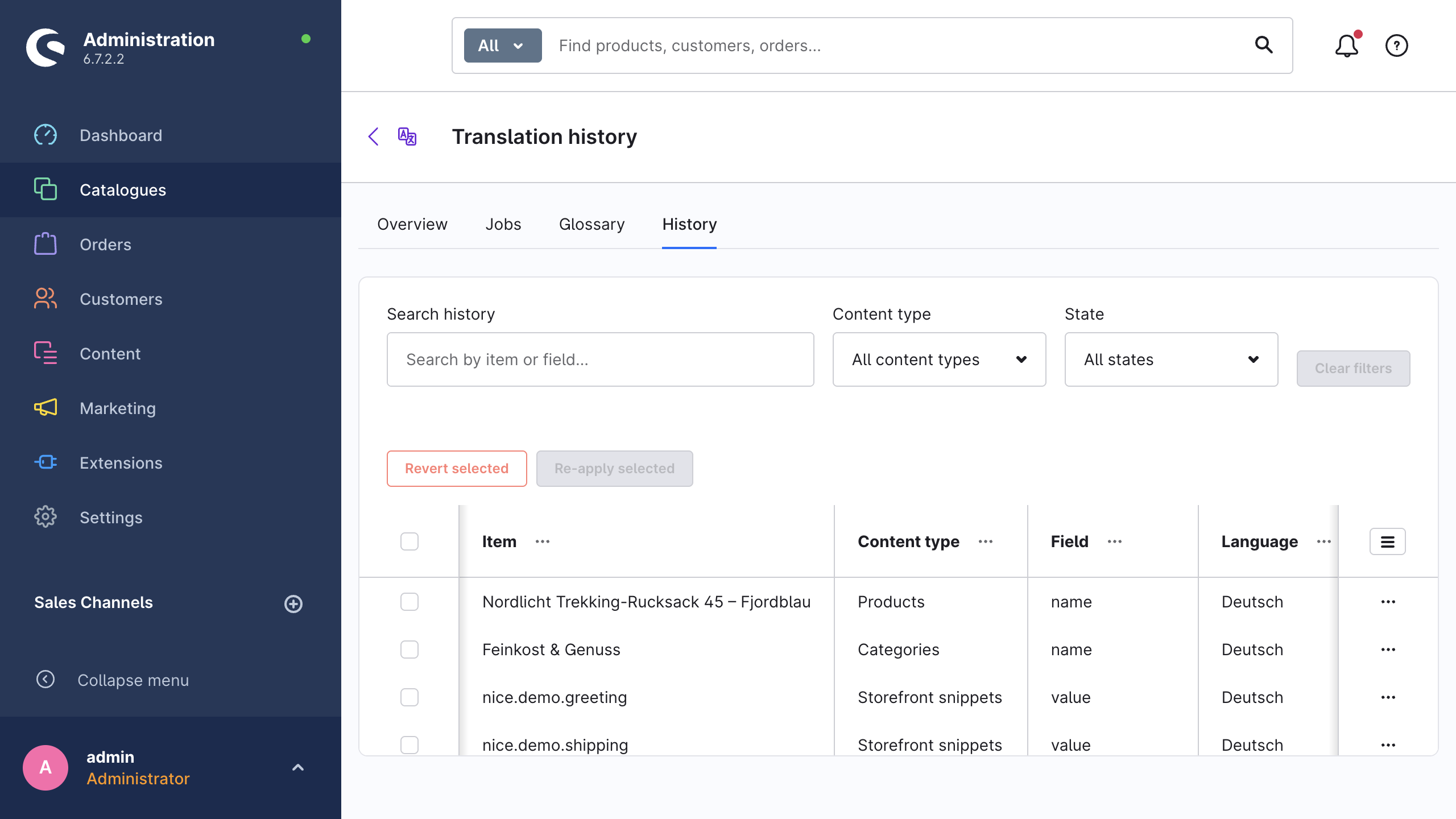
| Control | What it does |
|---|---|
| Search history | Matches the item label and the field name |
| Content type | Narrows the list to one content type |
| State | Applied or Reverted |
| Clear filters | Resets the search and both filters |
The columns are Item, Content type, Field, Language, State and Translated at. If a record lost its label after the translation, its row shows the content type and a short id.
Examine the values
Show values in the context menu of a row opens the Translation values dialog. The dialog shows the previous value and the new value side by side, each with a Copy button.
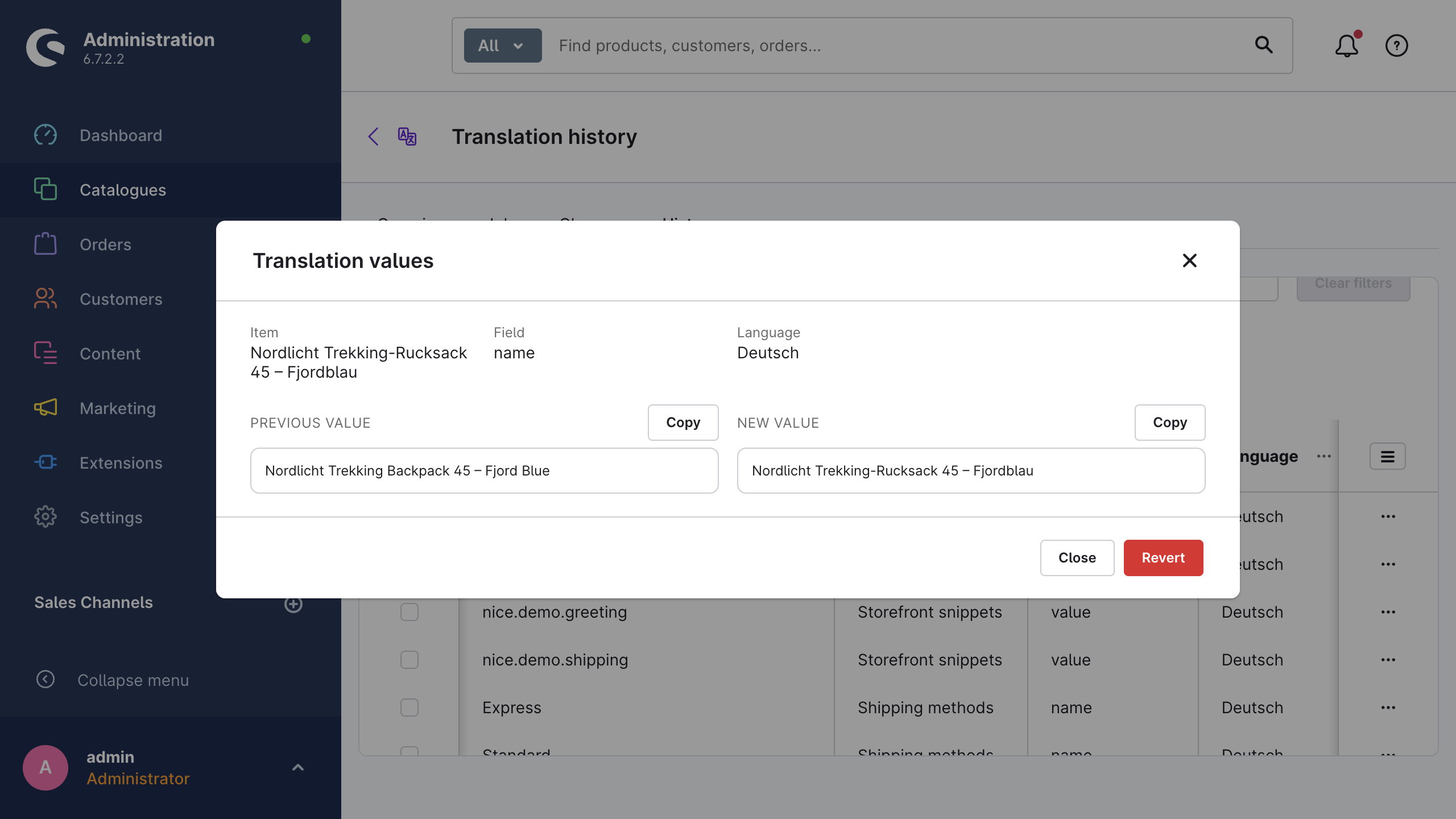
Use the dialog to judge a translation before you decide whether to keep it. The dialog also contains the Revert or Re-apply button for that entry.
Revert and re-apply
The state of the entry decides which of the two actions is available:
- Revert writes the previous value back. It is available for the entries in the state Applied.
- Re-apply writes the translated value again. It is available for the entries in the state Reverted.
Use the context menu of a single row, or the values dialog. As an alternative, select several rows and use Revert selected or Re-apply selected. In a mixed selection, each button affects only the rows in its matching state. One action processes a maximum of 200 entries. For a larger rollback, divide the selection, or revert the job as a whole.
The extension then reports the result, for example 12 reverted, 3 skipped (modified or wrong state). The guard below produces the skipped count.
If you revert an entry whose previous value was empty, the extension deletes that translation for that language again and writes no empty string. For storefront snippets, the extension deletes the snippet that the translation created, and a re-apply creates it again.
After a successful revert or re-apply, the extension synchronises its own fingerprints again. The manual-edit protection therefore does not read the change as a hand edit on the next run.
History inside a job
The detail page of a job shows the same list under Translation history, filtered to that job. You see the fields that this job wrote, with the same values dialog and the same per-row actions.
For a job-wide rollback, Revert all translations queues each applied entry of that job. Before the revert starts, a confirmation states what will happen: All translations written by this job will be reverted to their previous values in the background. Fields that were edited manually after the translation are protected and will be skipped.
Three constraints apply to the job-wide revert:
- The extension rejects a queued job and a running job. Cancel the job first, then revert what it already wrote.
- The extension also rejects a job without applied entries, whether because you already reverted everything, or because the recording was off during the run.
- The queue workers process the revert in the background, through the same queue as the translation, therefore the workers must be active. The history list below updates while the extension processes the entries.
Jobs & monitoring describes the job statuses, the cancellation and the retry.
The revert guard
A revert and a re-apply both examine the field before they change it. The extension reads the current value of that field in that language, and compares it with the value that the action expects. A current value that changed after the translation, or after the revert, stops the write. The extension keeps the field exactly as it is and counts it as skipped.
| Action | Expects the current value to be | If it is not |
|---|---|---|
| Revert | the new value that the translation wrote | the extension skips the field |
| Re-apply | the previous value that the revert restored | the extension skips the field |
The extension also skips three other kinds of entry: an entry in the wrong state for the action, an entry whose record or content type no longer exists, and an entry whose write fails. The notification counts each skipped entry. A result of 0 reverted, 40 skipped therefore tells you that the content changed after the translation.
The comparison is tolerant. An empty string and no value count as the same thing. The extension compares structured fields such as custom fields by their decoded content, therefore the key order has no effect.
Retention and how to stop the recording
Both settings are under Settings → Advanced → Translation history.
| Setting | Default | Effect |
|---|---|---|
| Record translation history | On | Stores the previous value and the new value of each translated field |
| Retention period (days) | 30 | The extension deletes the entries that are older than this period |
Two details are important in practice:
- The cleanup needs the scheduled-task runner. The hourly scheduled task
nice_translate.auto_translatedeletes the old entries on each tick, also when the recording is off. Ifbin/console scheduled-task:rundoes not operate, the extension deletes nothing. See Automation. - A stop of the recording applies from that moment forward. New translations produce no entries. The existing entries stay until their retention period ends. You cannot revert a translation that ran without history, because the extension keeps no second copy of the previous value.
Compare the retention period against the rollback window that you want. A longer period keeps that window open for longer, and keeps more shop content in the database.
WARNING
Data protection. History rows contain your actual shop content: product texts, CMS texts, email templates, snippets and custom fields, with all personal or confidential data in those texts. Consider that when you select a retention period, and read Data protection before you make the period longer.
Permissions
To read the history you need nice_translate.viewer. To revert and to re-apply you need nice_translate.editor, and without that privilege the Administration does not show the action buttons. See Permissions (ACL).