
Coverage report
The Translation coverage panel on the dashboard shows how much of your catalogue exists in each language. Read it after an import or a bulk edit to find drift. It does not audit the completeness of your translations.
The coverage matrix
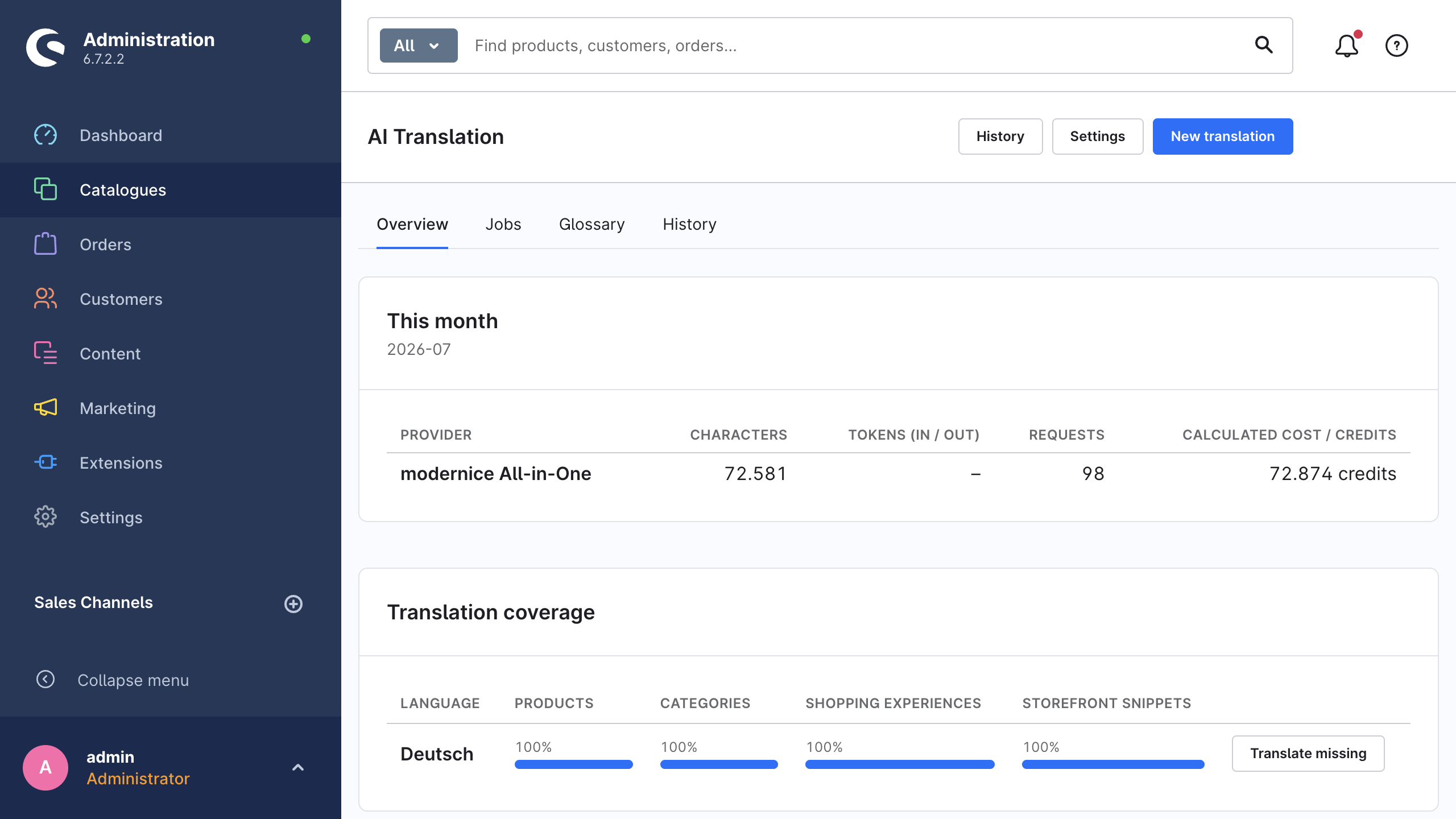
Open Catalogues → AI Translation. The Translation coverage card shows one row for each language and one column for each content type:
| Column | Content type |
|---|---|
| Language | Each language in the shop except the system language, sorted by name (the panel lists a maximum of 25). |
| Products | product |
| Categories | category |
| Shopping Experiences | cms_page |
| Storefront snippets | snippet |
Each cell shows a percentage and a progress bar. Move the pointer onto a cell to see the counts behind it, as translated / total.
The panel covers these four content types only. It does not measure the manufacturers, the properties, the email templates, the landing pages and the other supported content types. Supported content gives the full list.
If the shop has no language except the system language, the card shows No additional languages found. Add more languages to your shop to see the translation coverage.
How the extension counts
For products, categories and Shopping Experiences:
- Total is the number of records of that content type in the live version.
- Translated is the number of records with their own translation row for that language. That row must have a value in the primary text field of the content type, which is
namefor all three types. - Percent is translated ÷ total, with a maximum of 100.
Storefront snippets operate differently, because Shopware stores them in snippet sets. The panel compares the number of snippets in the snippet set of the target language against the set of the system language. A language without a snippet set therefore shows no useful coverage. See Supported content.
Two counting conventions apply:
- A content type with no records at all reports 100 %. Zero of zero counts as complete.
- The translated count has the total as its maximum, therefore a language cannot show more than 100 %.
Limits of the matrix
The panel performs a presence check on one text field per record, and that is its full scope. In practice this means four things:
- A product with a translated
name, but with an emptydescription,metaTitleandmetaDescriptionin that language, counts as translated. - A gap at field level never appears. A description that is half finished, or an untranslated custom field, keeps the percentage exactly where it was.
- The panel does not judge the quality either. A row with placeholder text counts the same as a good translation.
- Only the translation row of the target language itself counts. A record that shows the text of its parent language through the language inheritance of Shopware counts here as untranslated.
Read the matrix as a drift indicator. A number that drops after an import, or a language far behind its siblings, is worth your attention. To find what is actually missing inside the records, start the wizard with the scope Only items without translation. That scope evaluates each eligible field of a record. See Translation wizard.
Use it after an import
The report is most useful immediately after an import. ERP synchronisations, CSV imports and Admin API integrations usually write the default language only, therefore each imported record arrives without translations:
- Start the import.
- Open Catalogues → AI Translation and read the coverage row of each language. A percentage that dropped after the last import shows you the size of the gap that the import created.
- Close the gap with a translation run, by hand or with automation on a schedule.
An import writes into the default language, and that is exactly the text that Skip unchanged content fingerprints. The extension does not change the records whose source text did not really change.
Translate missing
Each row ends with a Translate missing button, and the users with the nice_translate.editor privilege see it. The button opens the translation wizard with that language preselected as the target language. The click itself creates no job.
The wizard opens on step 1 with no content type selected. Do these three steps:
- Select the content types to include.
- Set Items to include to Only items without translation for each of them. The preselection sets the language only, and it keeps the default scope.
- Continue through the provider and the options, and confirm the estimate in the usual way.
From there it is an ordinary job. See Jobs & monitoring.
Related pages
- Translation wizard for the scope, the mode and the estimate.
- Supported content for the content types and fields beyond the four types that the panel measures.
- Automation for a way to keep the coverage high without the dashboard.